Convert and Compress Video with Apple Compressor
Mac
Software
Tips
Use Apple Compressor to convert video to MP4, reduce file size, and adjust audio volume.
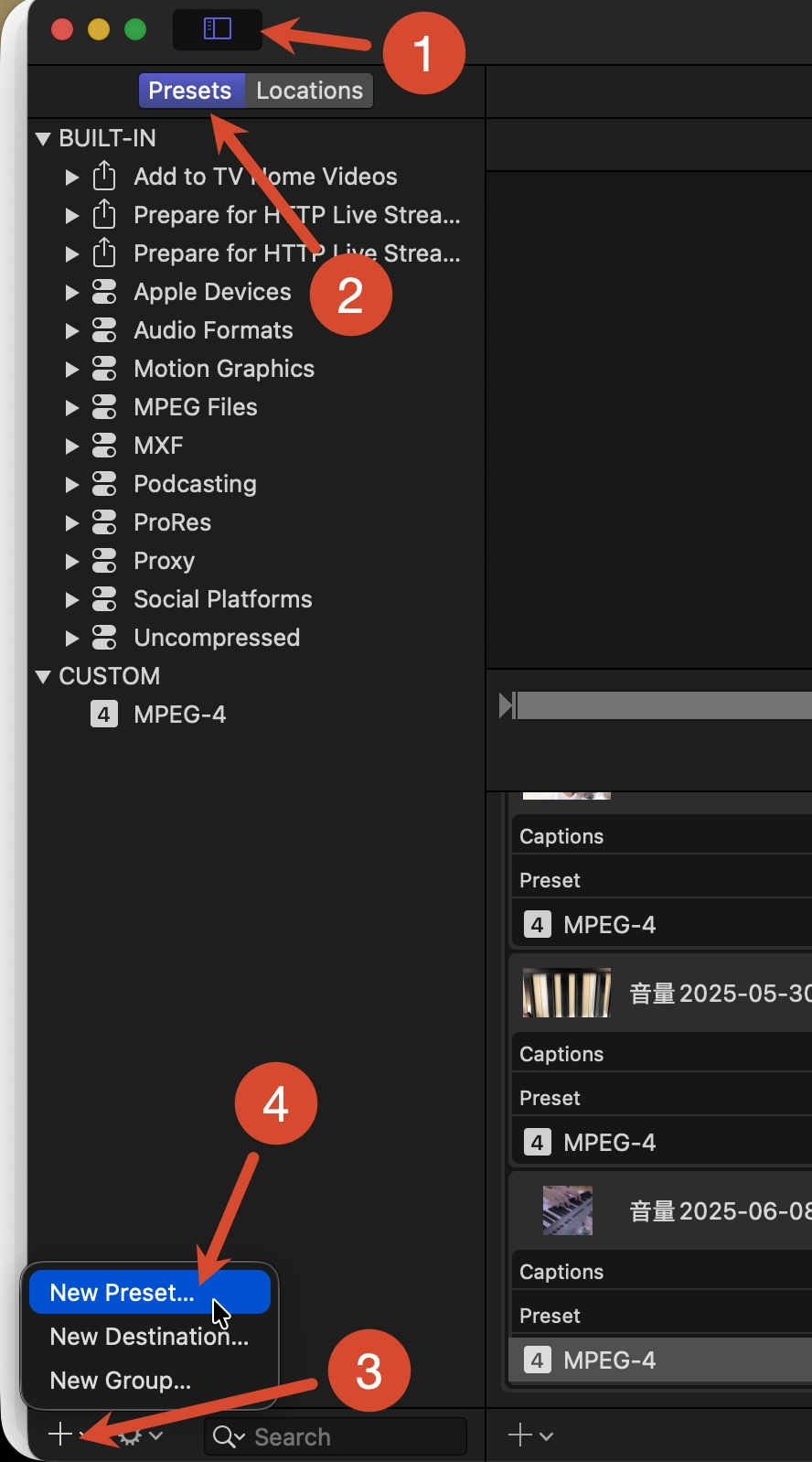
1 Convert a video to MP4
- Open the panel on the left.
- Click the
+button at the bottom to create a custom preset. - Select
MPEG-4as the format. - To reuse the preset, select
Custom > MPEG-4from the Presets menu.
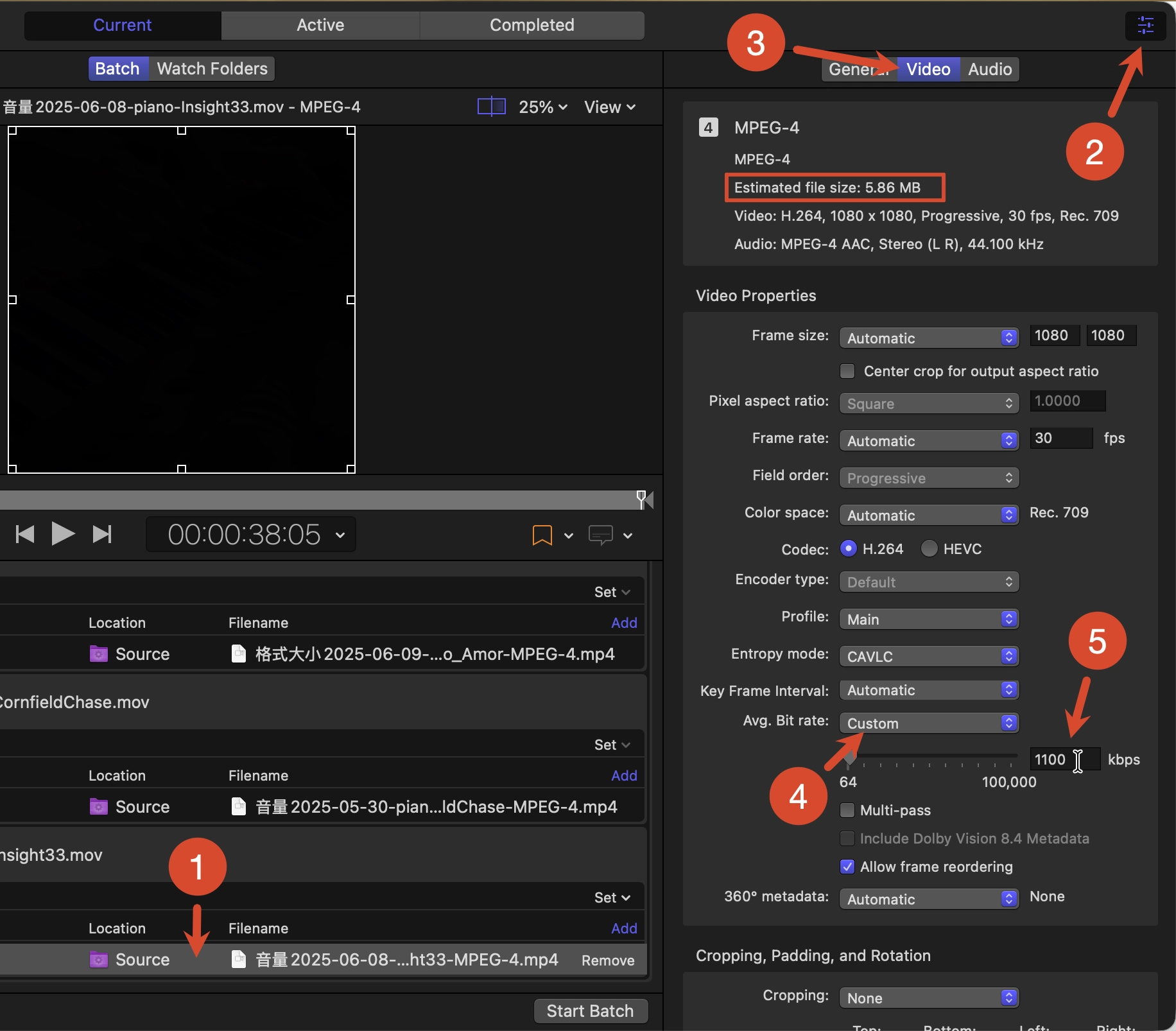
2 Reduce file size while preserving quality
- Select the video job that you want to compress.
- Open the panel on the right and select
Video. - Under
Avg. Bit Rate, selectCustom. - Lower the bit rate while monitoring
Estimated File Size. Adjust it until the file size and visual quality meet your requirements.
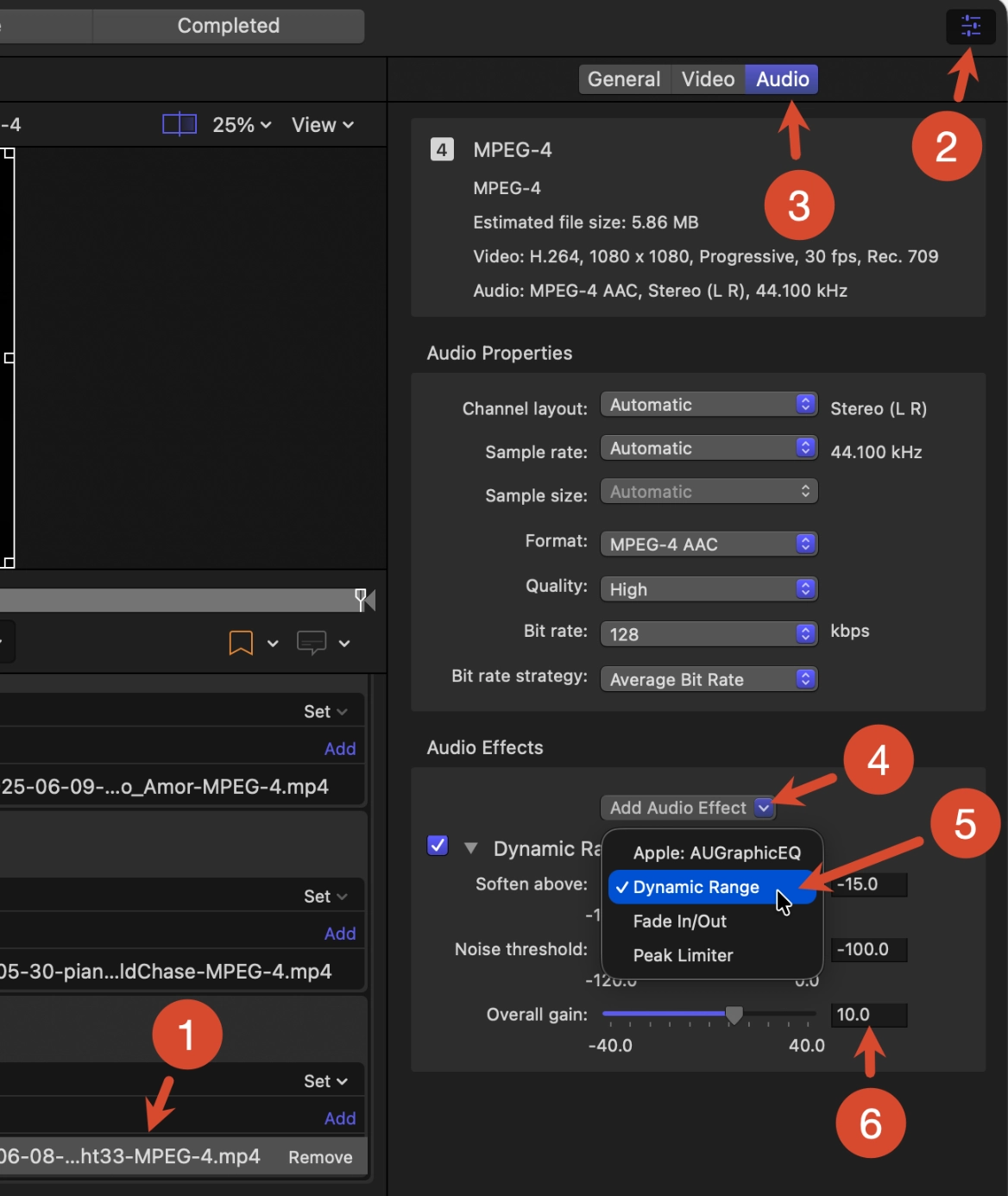
3 Adjust the audio volume
- Select the video job whose volume you want to change.
- Open the panel on the right and select
Audio. - Select
Add Audio Effect > Dynamic Range. - Adjust
Overall Gain. A value of0preserves the original volume; positive values increase it, and negative values decrease it.