Fixing Easy Canvas Connection Problems
Windows
Software
Tips
How to fix Easy Canvas failing to connect to a Windows PC over Wi-Fi or a USB cable.
1 Connect Through Wi-Fi
1.1 AMDS & Bonjour Services
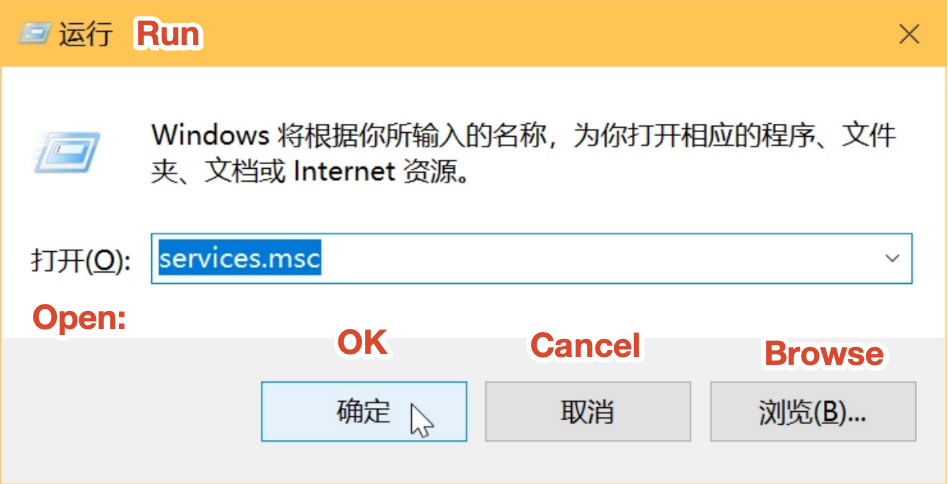
- Press Win + R to open the Run dialog, type
services.msc, and click OK to open the Services window.
- Check that the Apple Mobile Device Service (AMDS), Bonjour, and EL Display Hub Service Application services are present, and confirm each one is Running with its startup type set to Automatic.



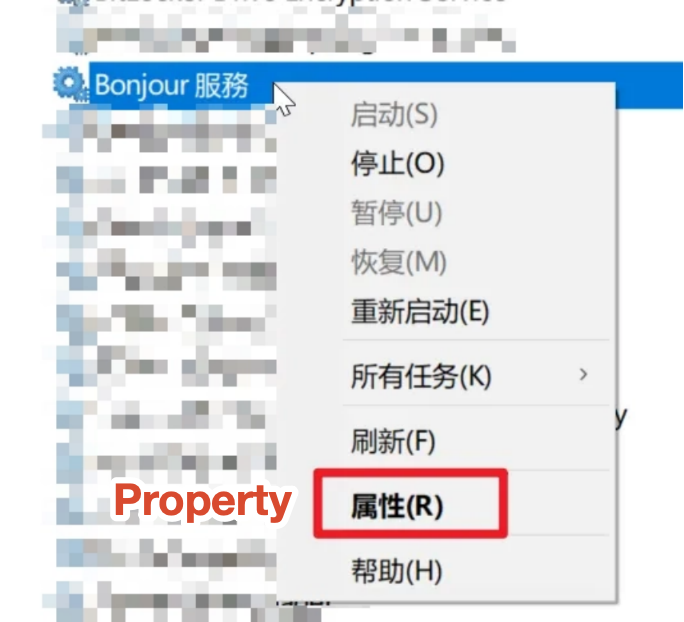
- If a service is present but not running, right-click it and open Properties.
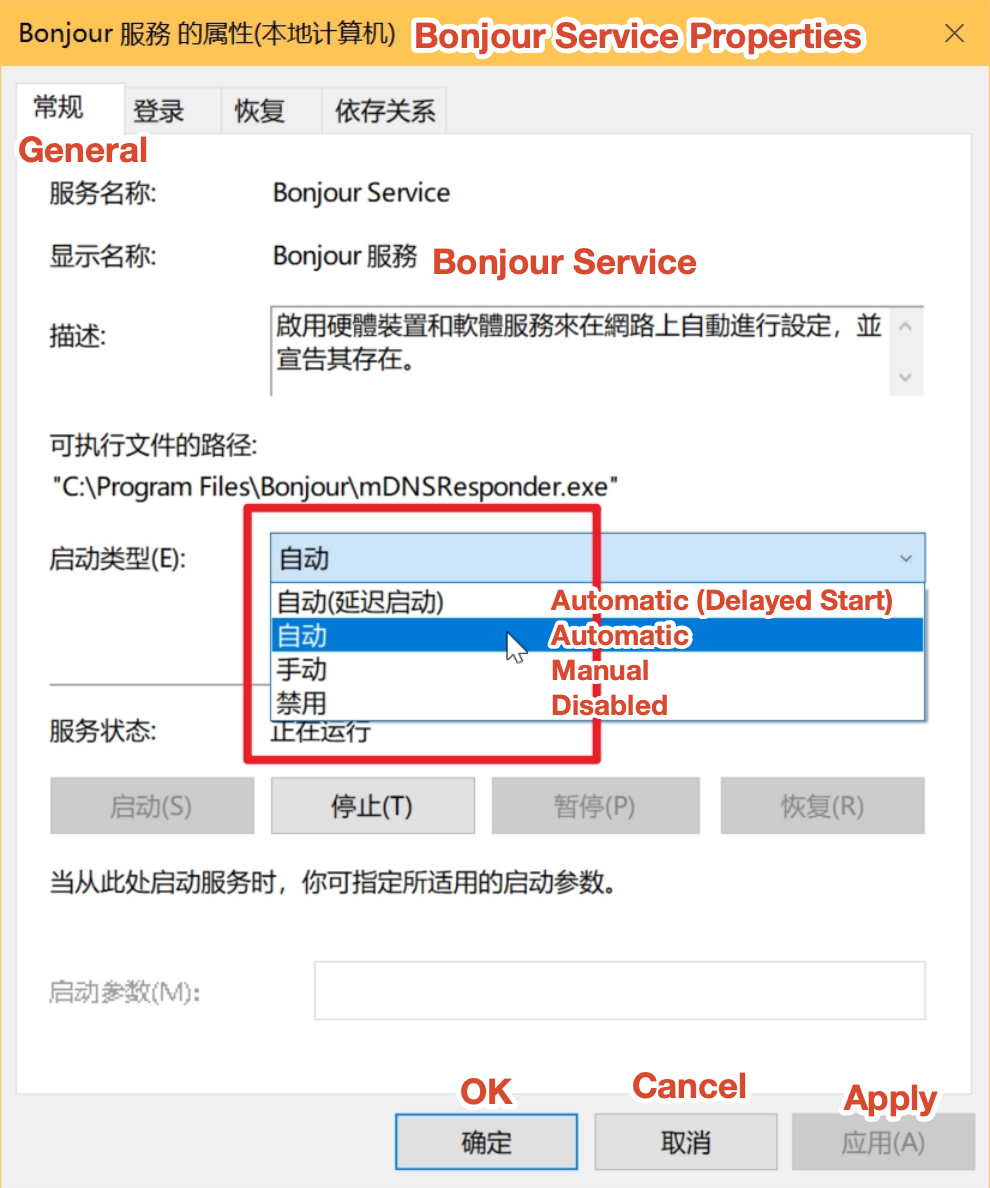
- Set Startup type to Automatic and click OK.
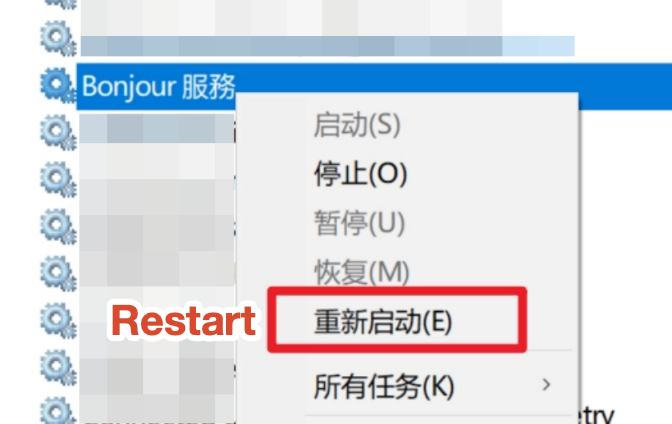
- Right-click the service again and choose Restart. (Do the same for AMDS.)
1.2 Reinstall iTunes
If AMDS and Bonjour services are missing, reinstall iTunes.
- Press Win + S to open search, search for iTunes, and check whether it’s already installed.
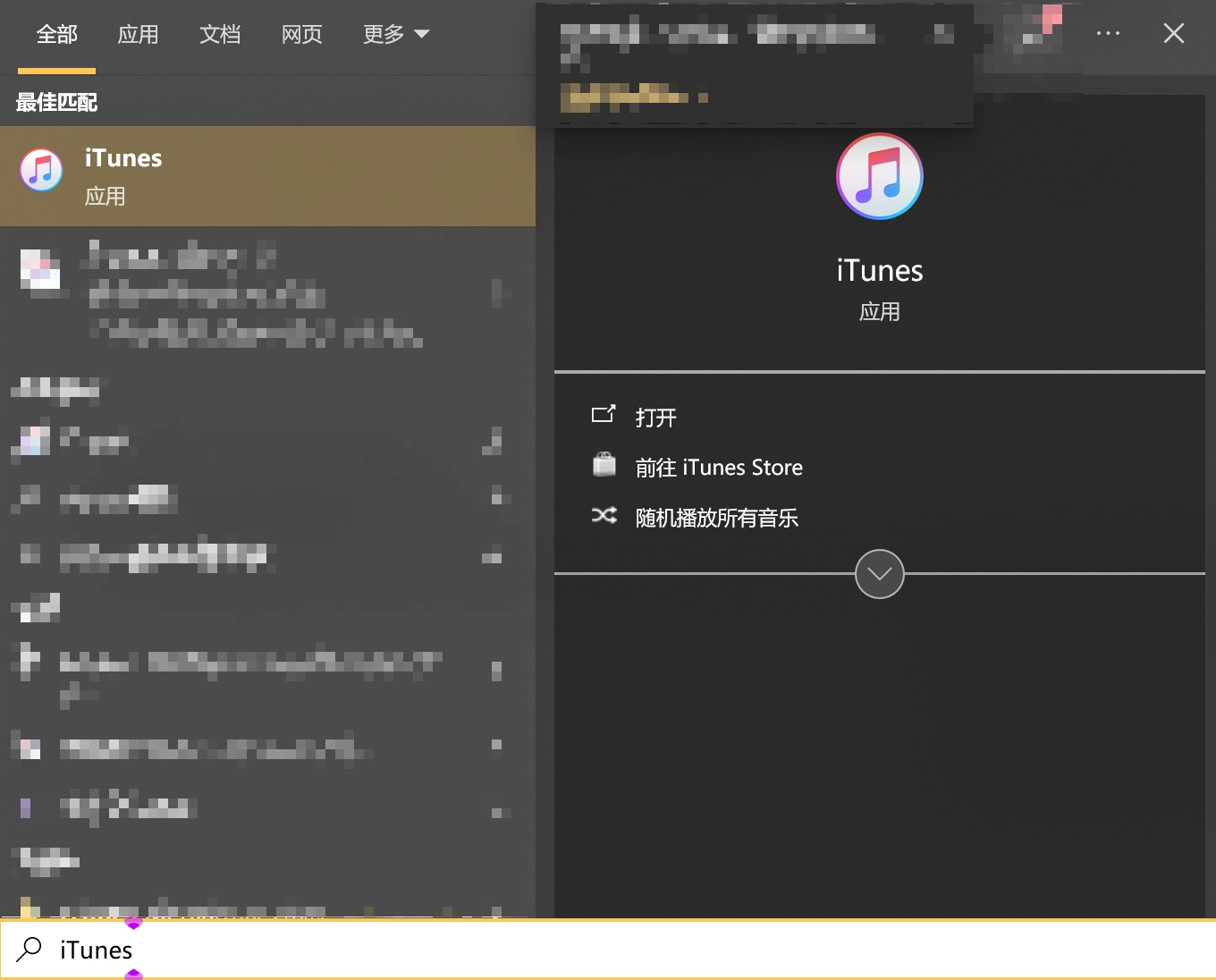
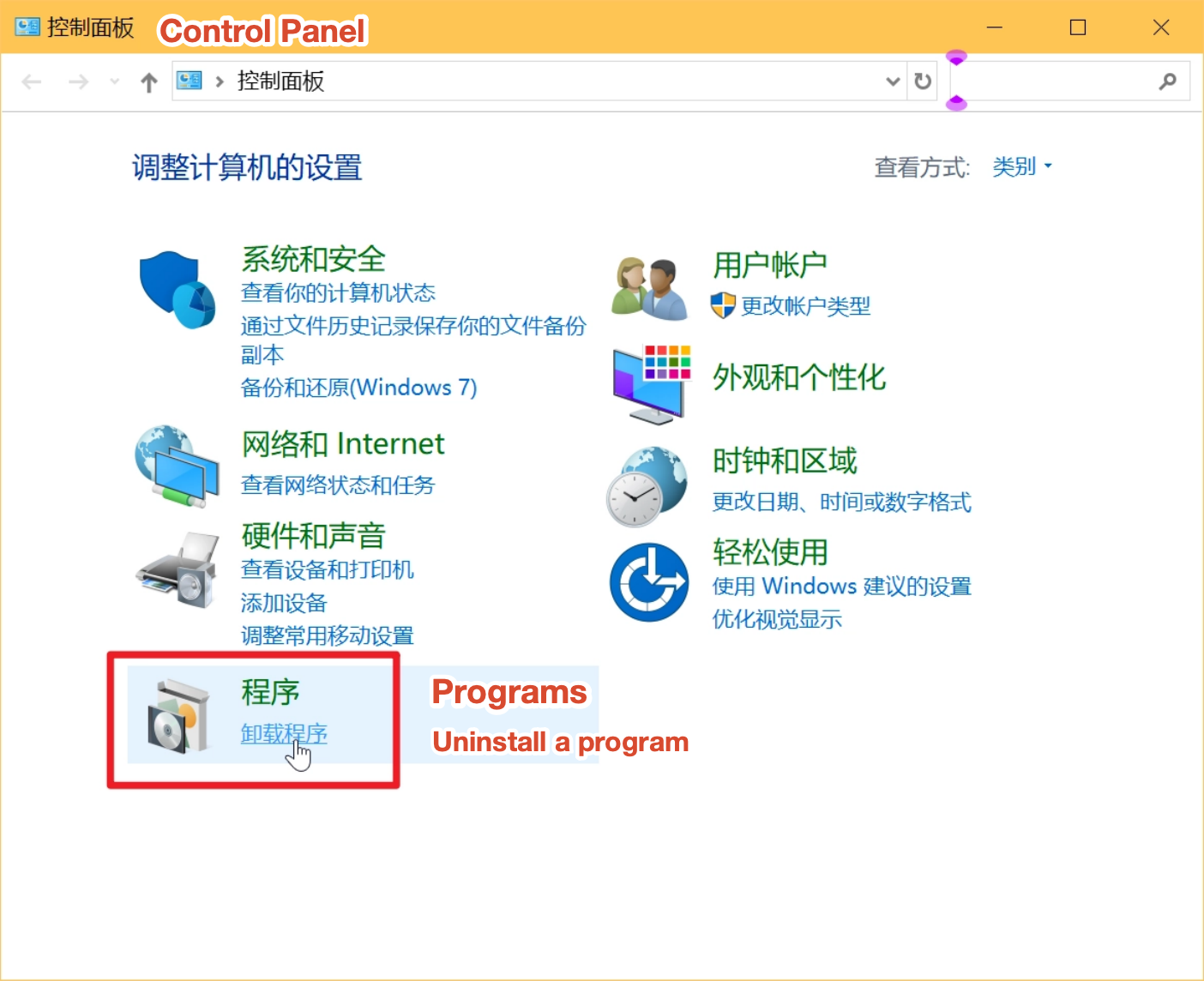
- If iTunes is installed but the AMDS or Bonjour services are missing, uninstall it and reinstall. Open Control Panel and choose Uninstall a program.
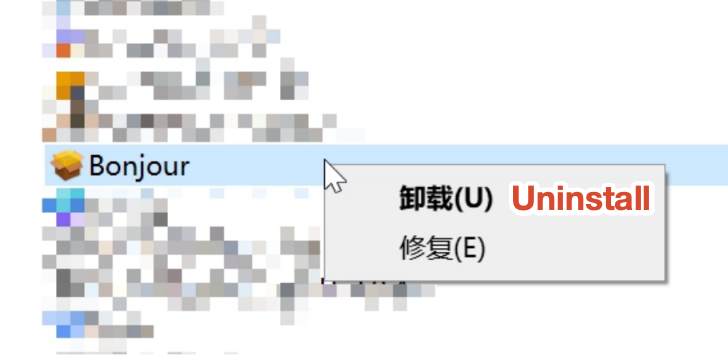
- Right-click to uninstall both Bonjour and iTunes.
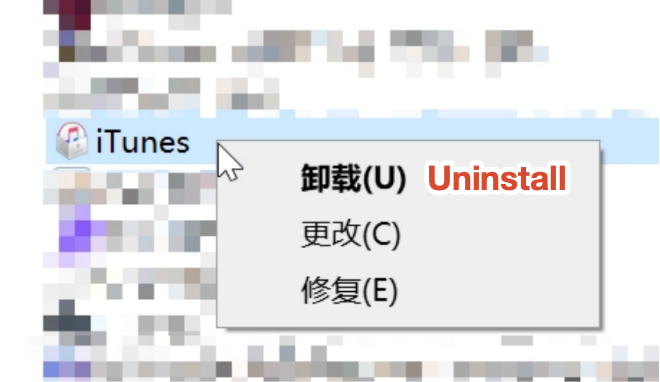
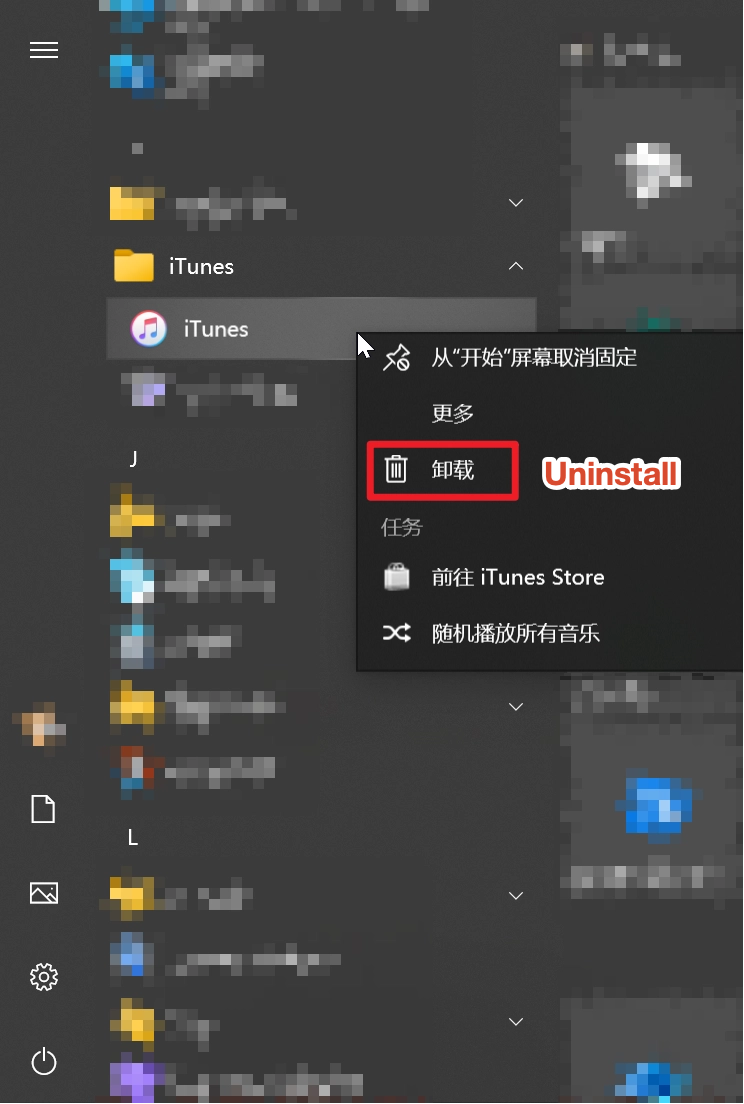
- If you can’t find iTunes in the uninstall list, press Win to open the Start menu, find iTunes, and right-click to uninstall it.
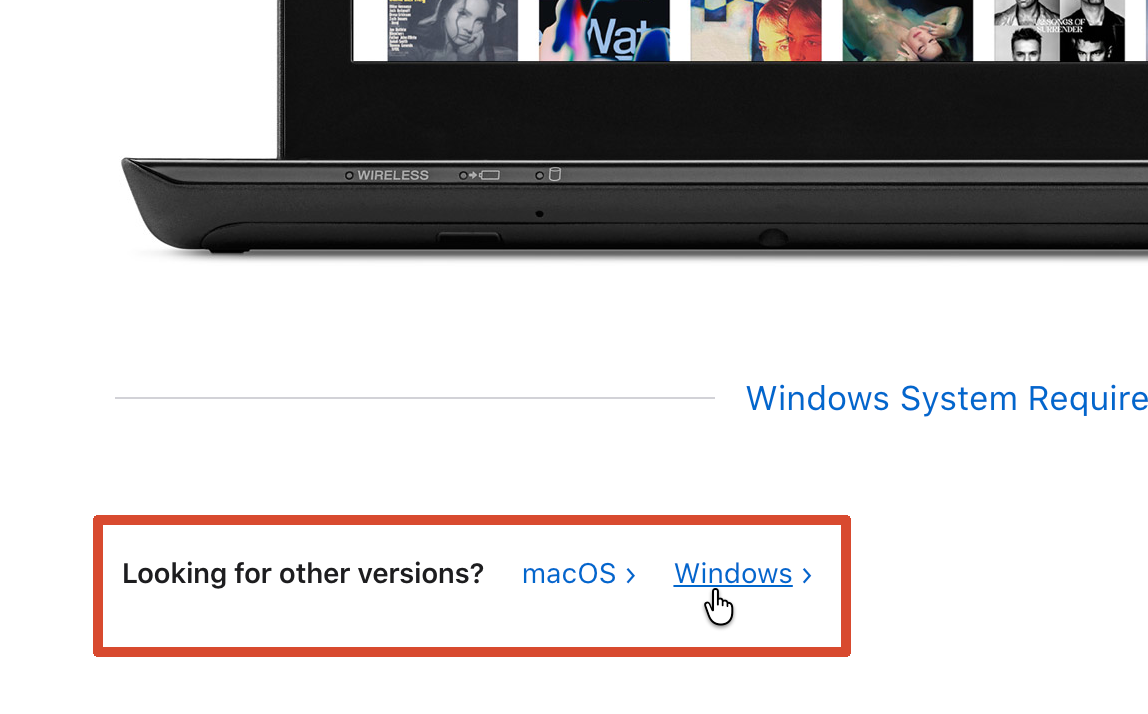
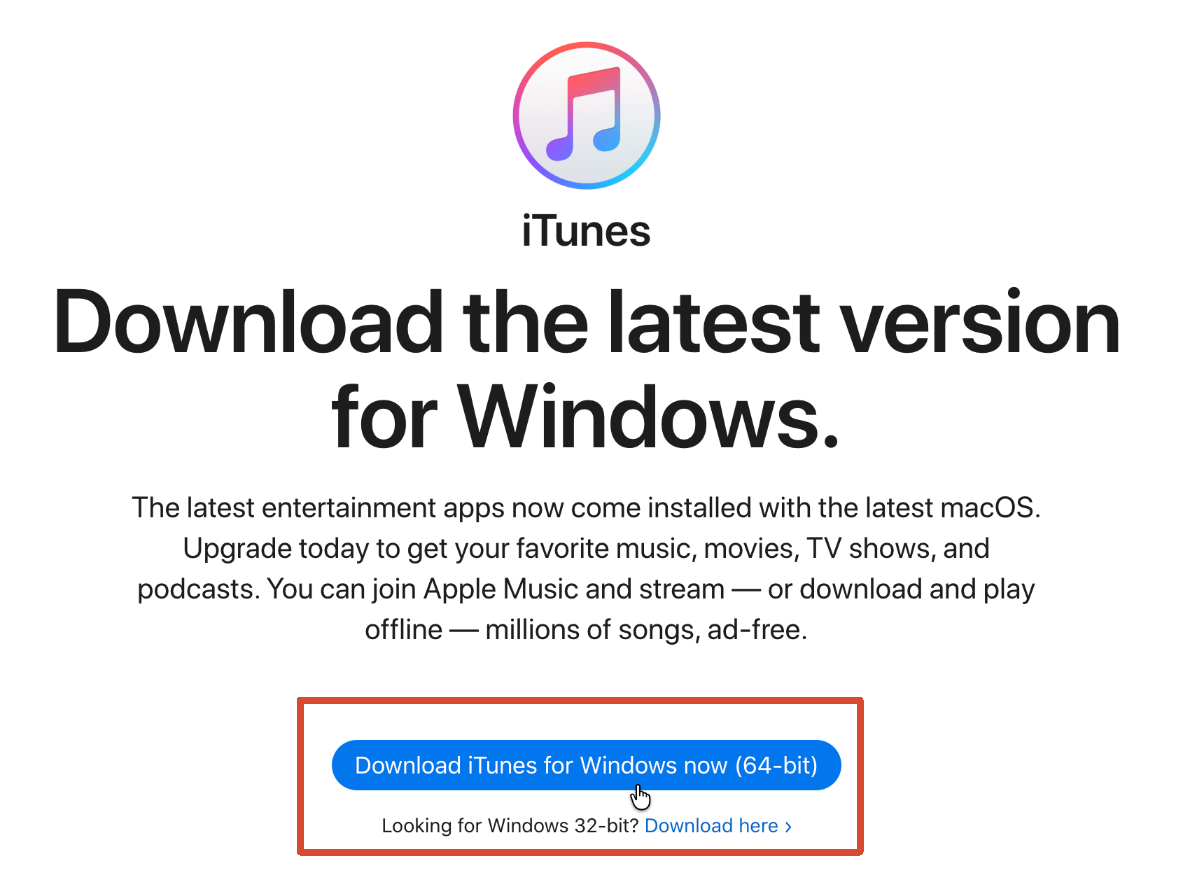
- Reinstall iTunes. Don’t install it from the Microsoft Store; instead, open the official site, scroll down to “Looking for other versions?”, choose Windows, download iTunes64Setup.exe, and install it manually.
- After installing, reopen the Services window and check the AMDS and Bonjour services.
2 Connect Through Cable
A cable connection usually fails because the AMDS (Apple Mobile Device Service) and Bonjour services are missing or disabled. They’re meant to install automatically along with iTunes, but if you’ve ever uninstalled iTunes and reinstalled it from the Microsoft Store, they may be gone. When that happens, uninstall iTunes and reinstall it from another source.