Recovering Misplaced Windows Shell Folders
1 Preface
This was the first extended troubleshooting write-up I kept in Notion, and it marked the start of my habit of documenting how I solve problems, both to share and to reference later.
The write-up prompted me to adopt Notion much more often as a regular tool. Investigating this particular problem also introduced me to VSCode, my first encounter with an IDE, and it is where my interest in programming began.
The Takeaways section presents the summary of the problem and the shortest path to a fix. The remainder of the article documents how I diagnosed the problem and worked through it.
2 Takeaways
2.1 The Problem
A Windows 10 shell folder (e.g., Desktop, Documents, Pictures ) was accidentally moved to the root of a drive (e.g., D:\, E:\). How can it be recovered?
2.2 The Fix
- Create the target folder (e.g.,
E:\Users\UserName\Videos\). - Edit the registry.
- Press
Win + Rand typeregedit. - Go to
HKEY_CURRENT_USER\Software\Microsoft\Windows\CurrentVersion\Explorer\User Shell Folders. - Find the entry whose value is the drive root (e.g.,
E:\). - Change it to the path of the folder you just created (e.g.,
E:\Users\UserName\Videos\). - Save and restart the computer.
- Press
- Show hidden system files.
- Open the target folder.
- Go to
File > Options > View. - Check
⏺ Show hidden files, folders, and drives. - Uncheck
◻ Hide protected operating system files.
- Restore icon & display name.
- Find
desktop.iniin the target folder, open it in Notepad. - Set the
IconResourceandLocalizedResourceNameentries to the right resource index (listed in Table 1).
- Find
desktop.ini
[.ShellClassInfo]
LocalizedResourceName=@%SystemRoot%\system32\shell32.dll,<NameResource index>
IconResource=%SystemRoot%\system32\imageres.dll,<IconResource index>
<OtherEntries...>
Once finished, remember to re-hide the system files revealed in step 3.
3 The Problem: Moving a Shell Folder by Mistake
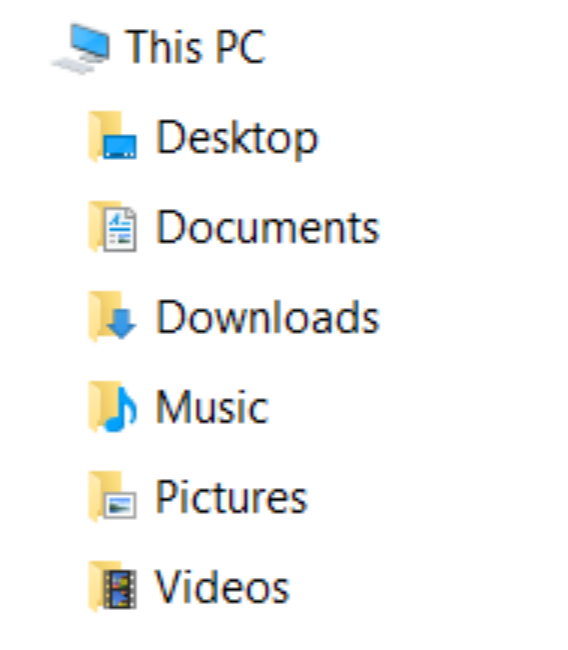
While cleaning up my C drive one day, I noticed that a batch of shell folders under C:\Users\<username> had not yet been moved to the E drive, so I decided to relocate them all at once.
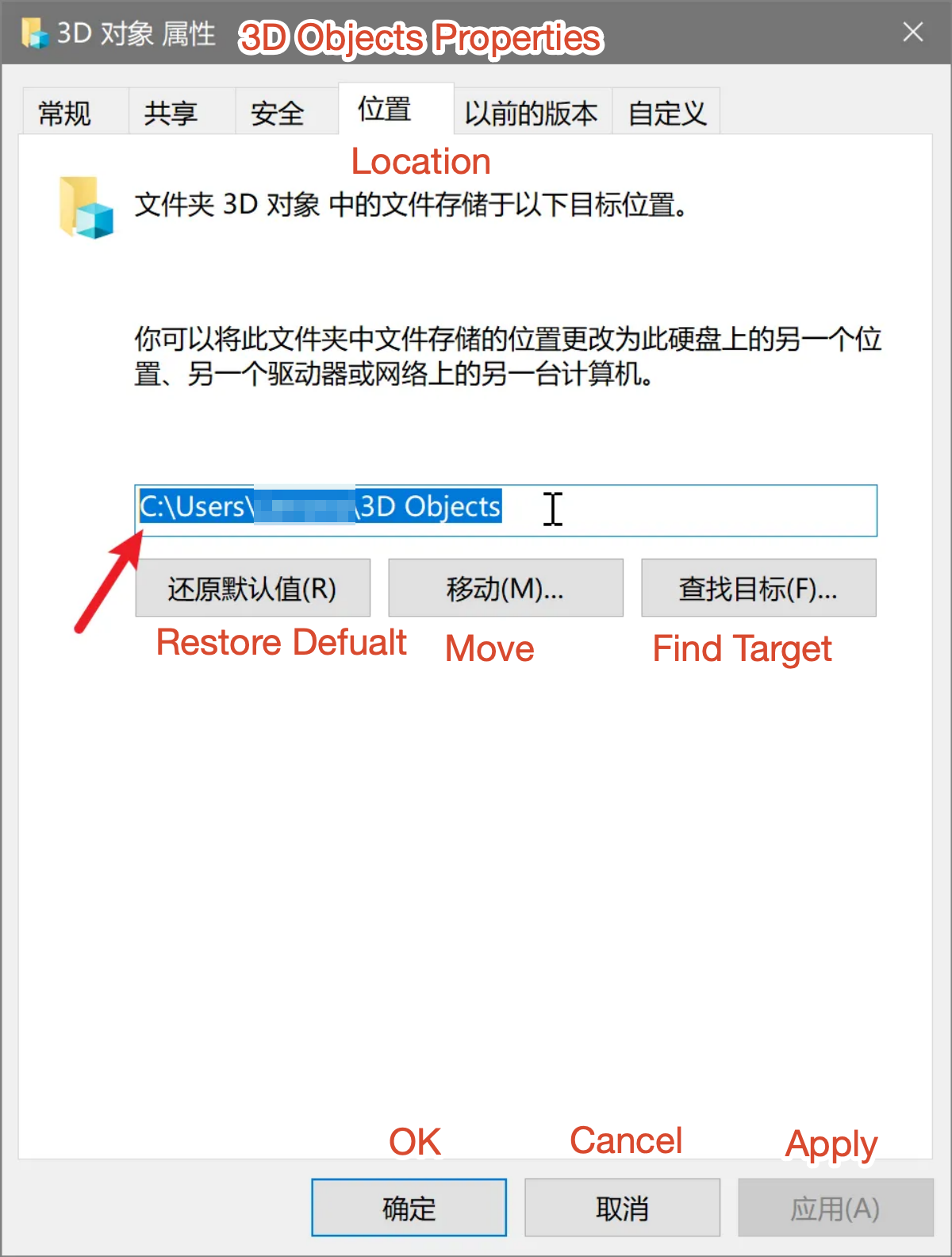
Taking the Saved Games file as an example, I opened its Properties , and clicked Location tab. Then I changed its path from C:\Users\Lenovo\Saved Games to E:\, and clicked Move.
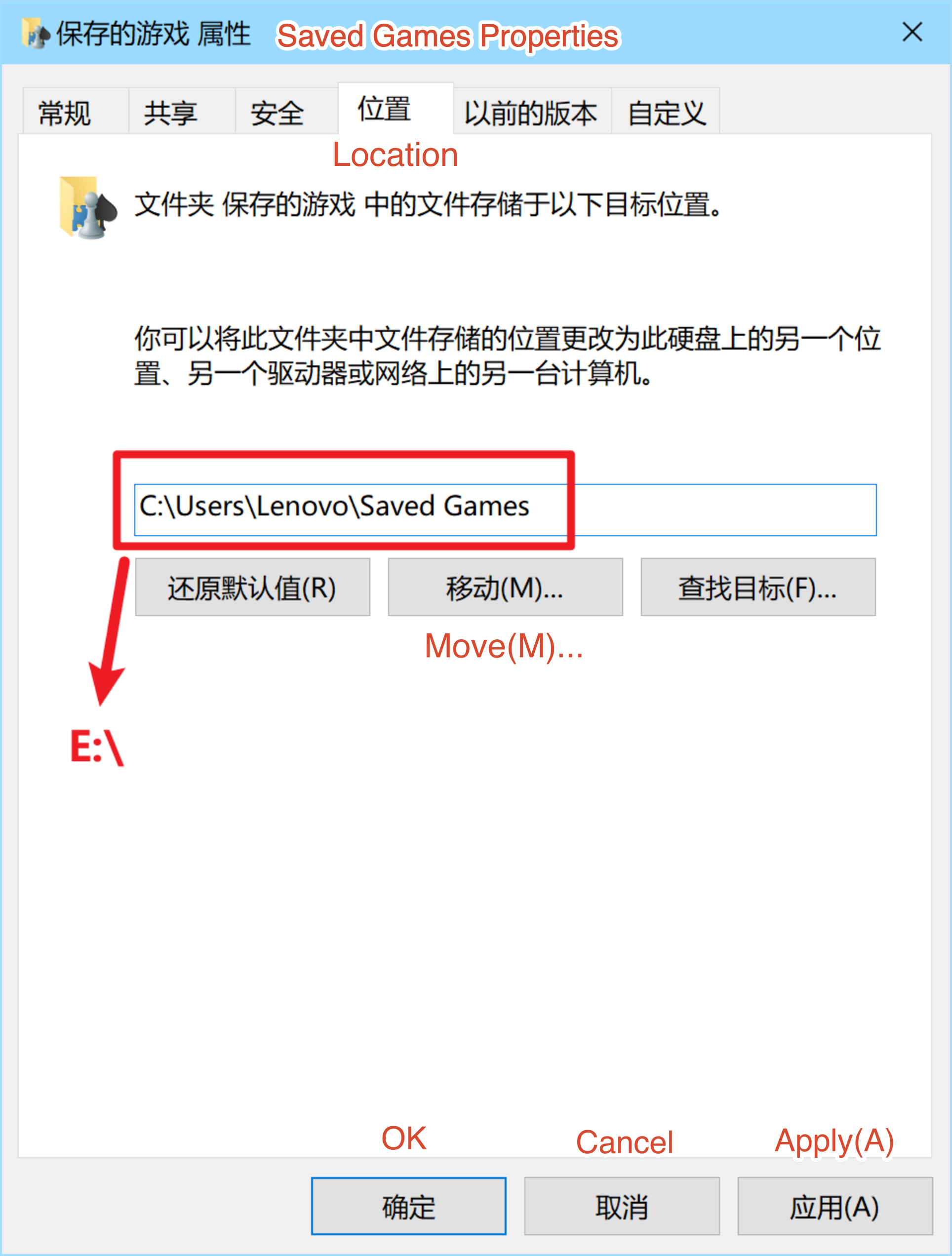
However, the Saved Games folder suddenly vanished. At that point I realized I had set the root of the E drive itself as the destination. I thus began searching for a fix, but the results were not what I expected — people are talking about games rather than Windows shell folders.
I then tried other shell folders as search terms: Videos (too common a word, yielding noisy results), 3D Objects (a distinctive name, but obscure), Desktop (a special case whose fixes might not generalize), etc.
After a few attempts, I settled on a solution: editing the registry.
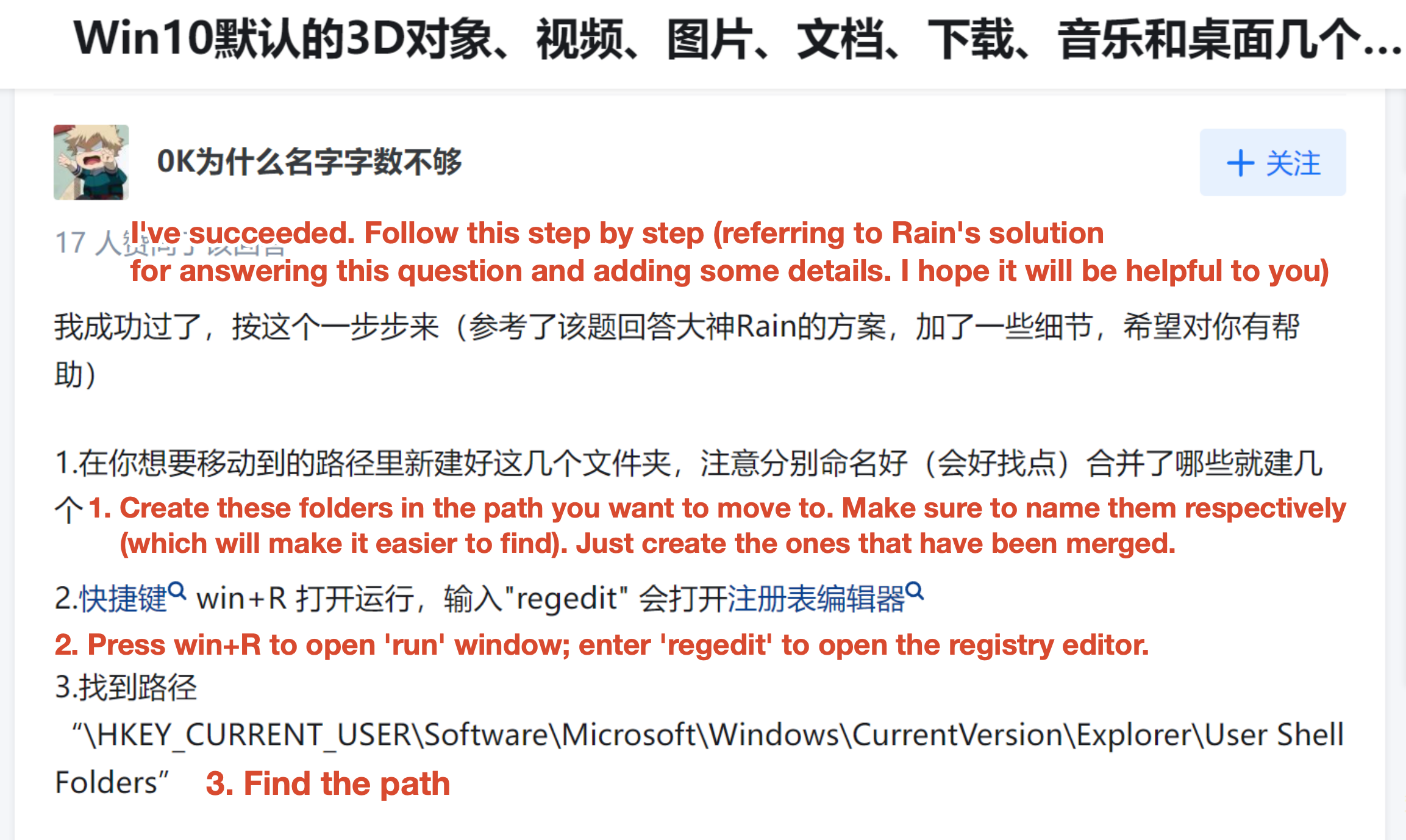
4 The Fix: Editing the Registry
The steps are as follows:
Create the target folder
E:\Saved Games\to hold the Saved Games folder where you want to move.Press
Win + Rto open the Run dialog, typeregedit, and open the Registry Editor.
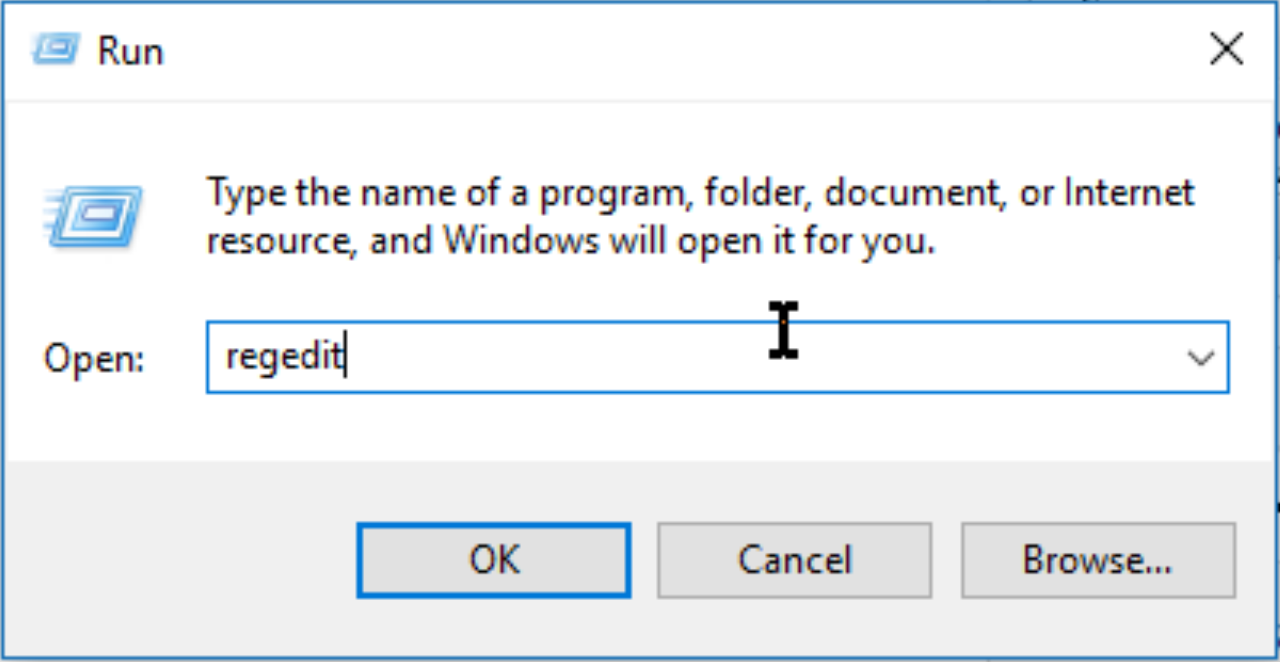
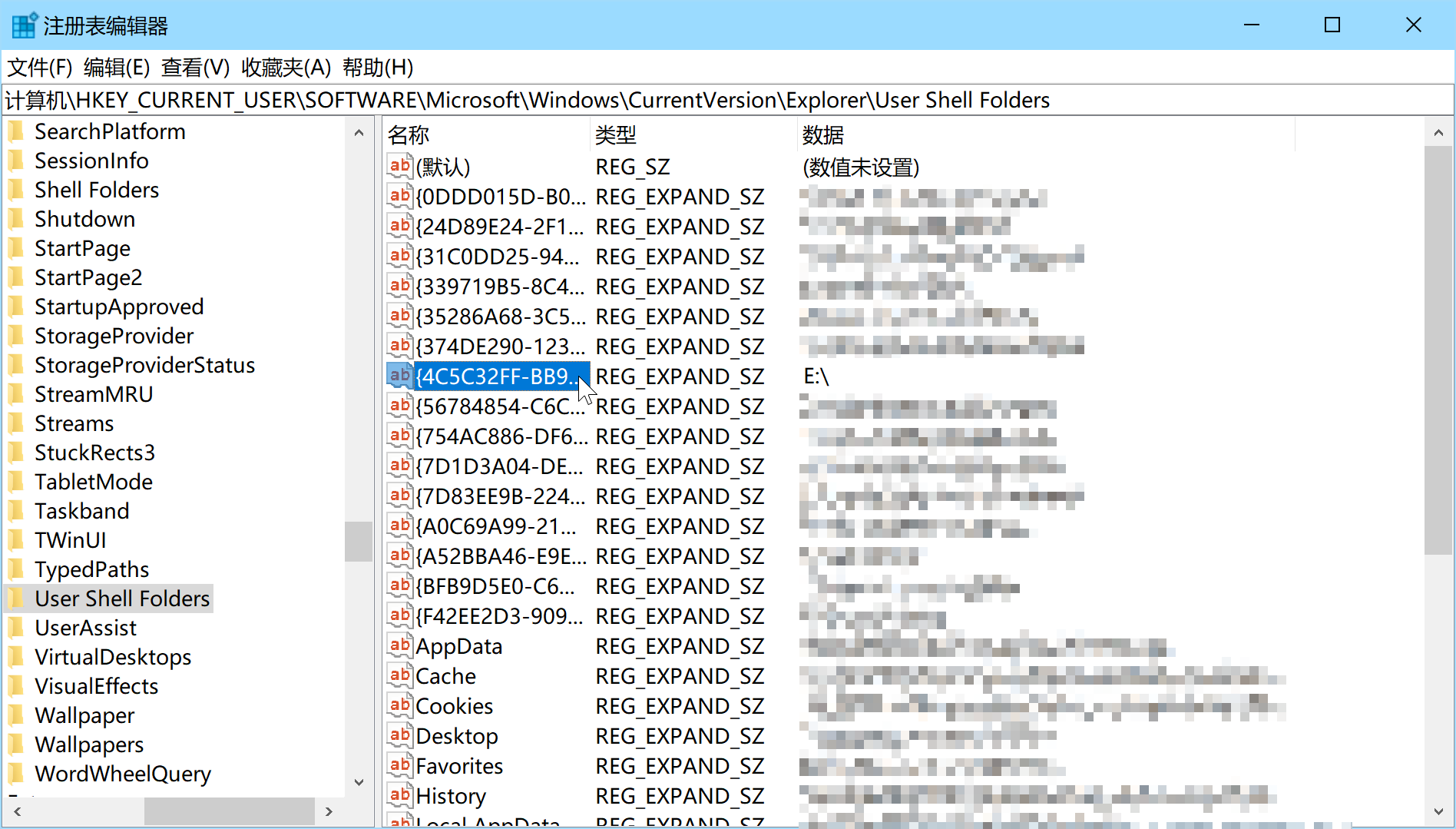
Locate and change the path.
Go to:
HKEY_CURRENT_USER\Software\Microsoft\Windows\CurrentVersion\Explorer\User Shell FoldersFind the entry whose value is
E:\and change it toE:\Saved Games.
(Be sure to create the folder before editing the registry.)
- Restart and verify.
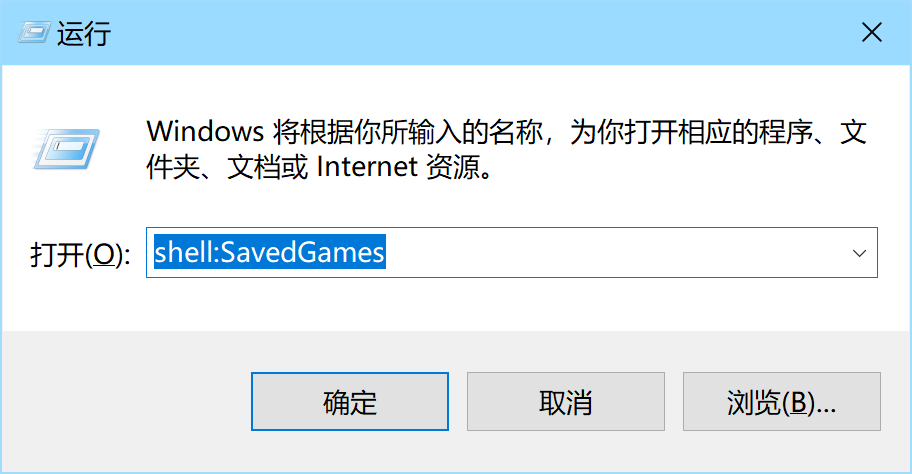
After restarting your computer, pressWin + Rand typeshell:SavedGames. If it opensE:\Saved Games, the recovery succeeded.
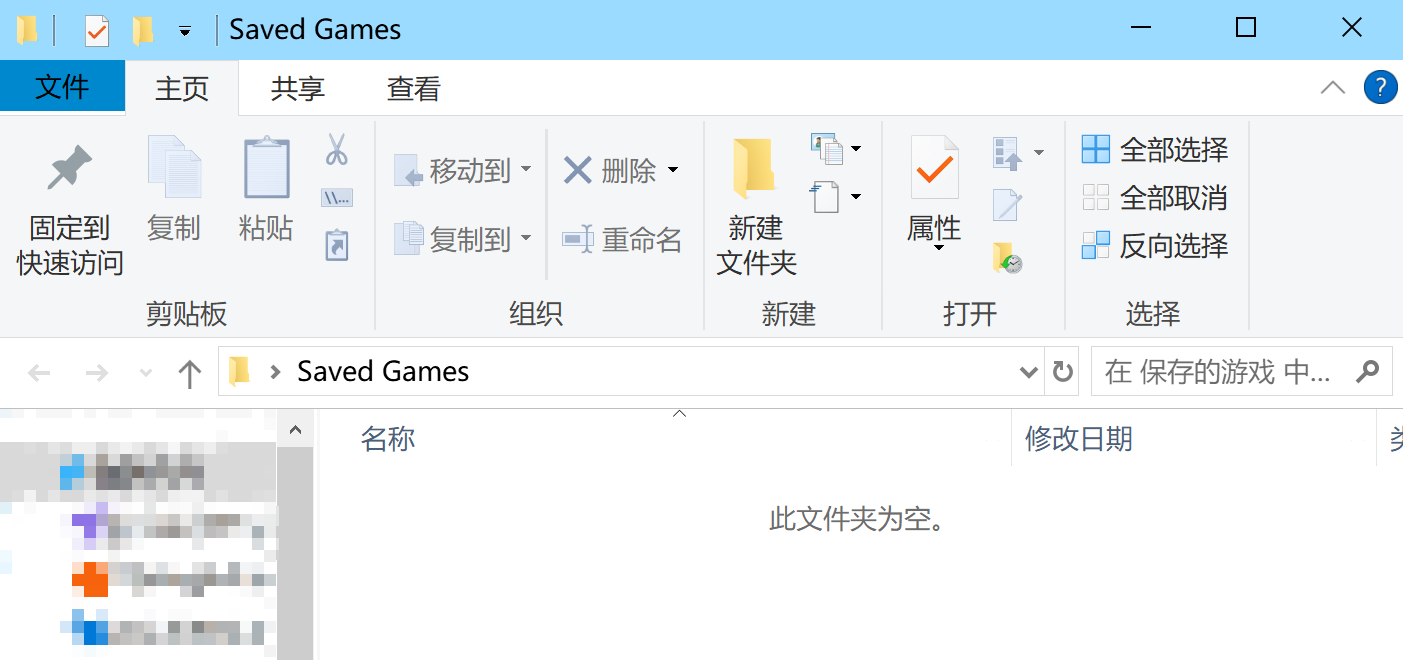
At this point the folder works again, but it still shows the default folder icon.
4.1 Restoring the Icon
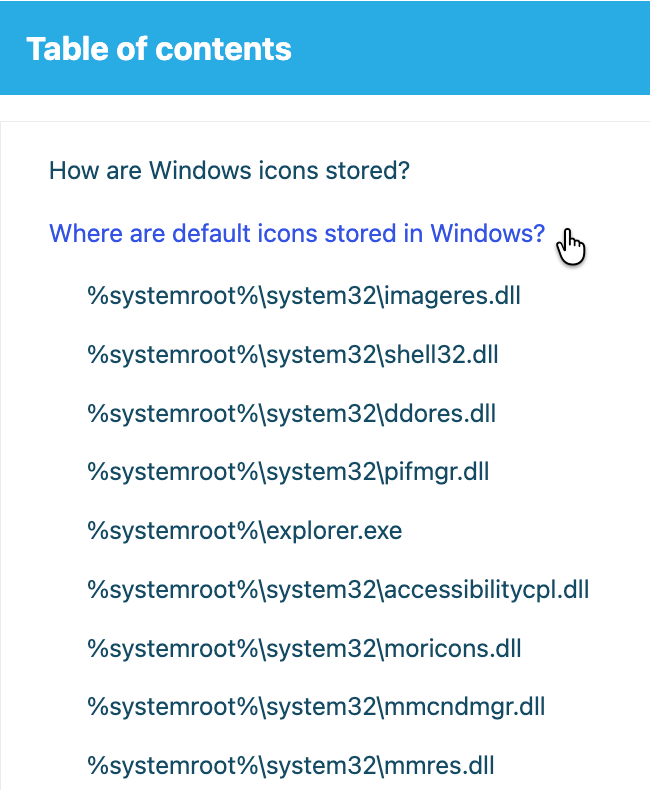
An article was found explaining where Windows stores its system icons.
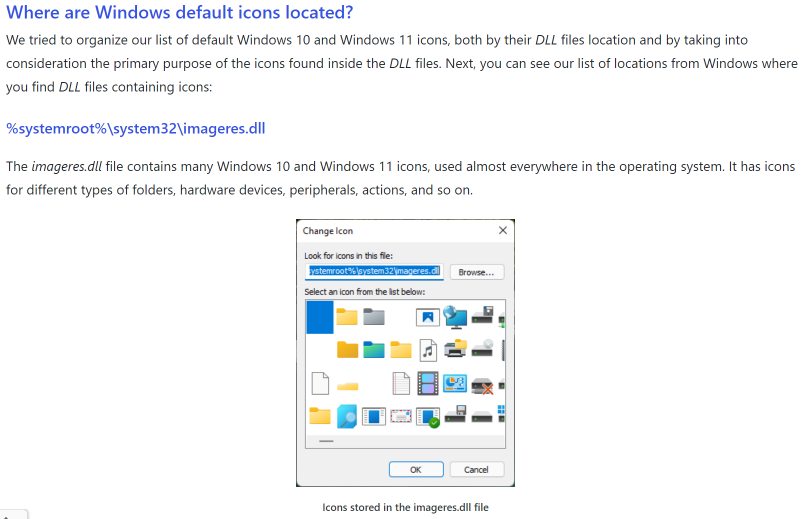
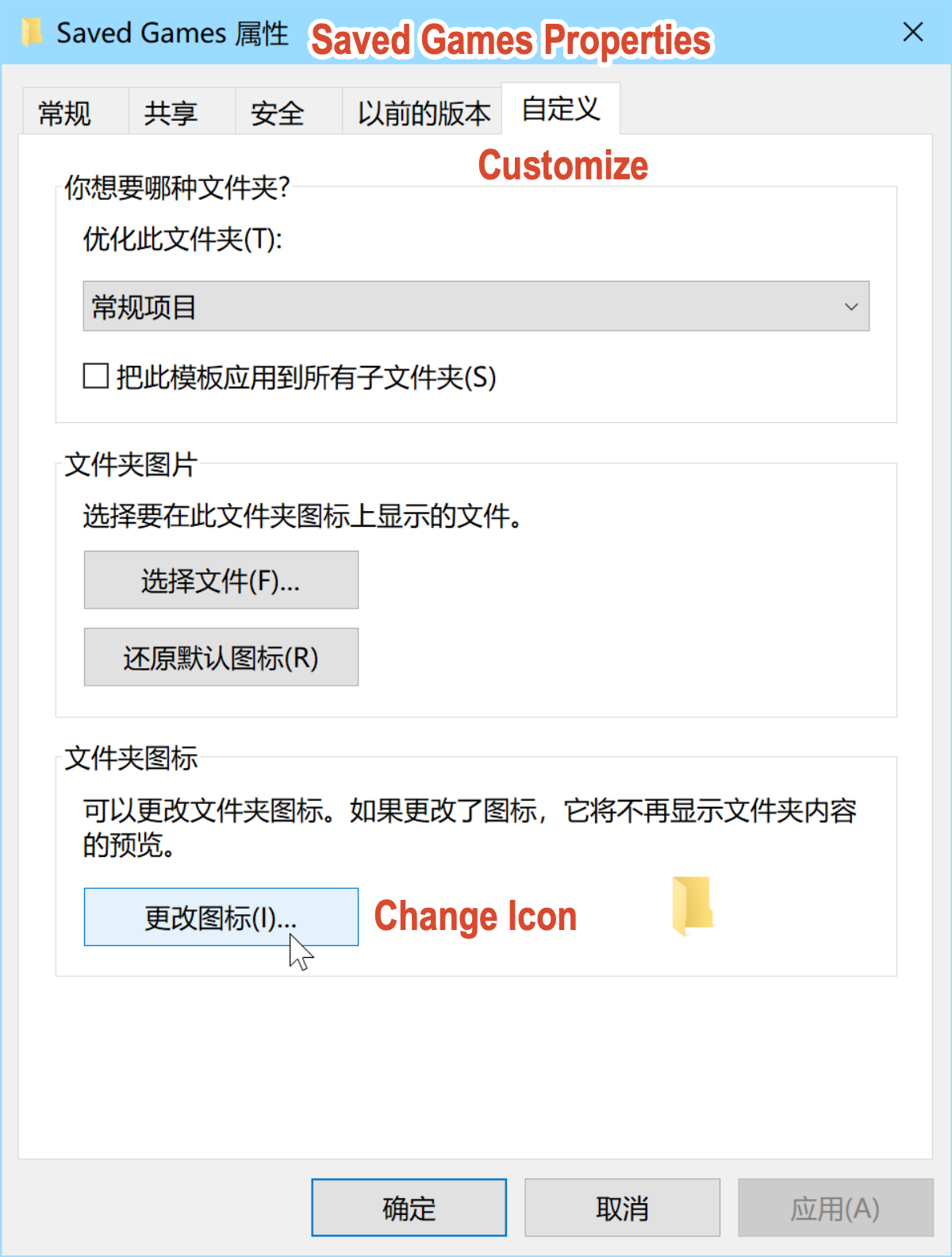
Through Properties > Customize > Change Icon, I found that the current icon source was SHELL32.dll . However, the Saved Games icon was not included there, suggesting that shell folder icons are stored across multiple DLL files.
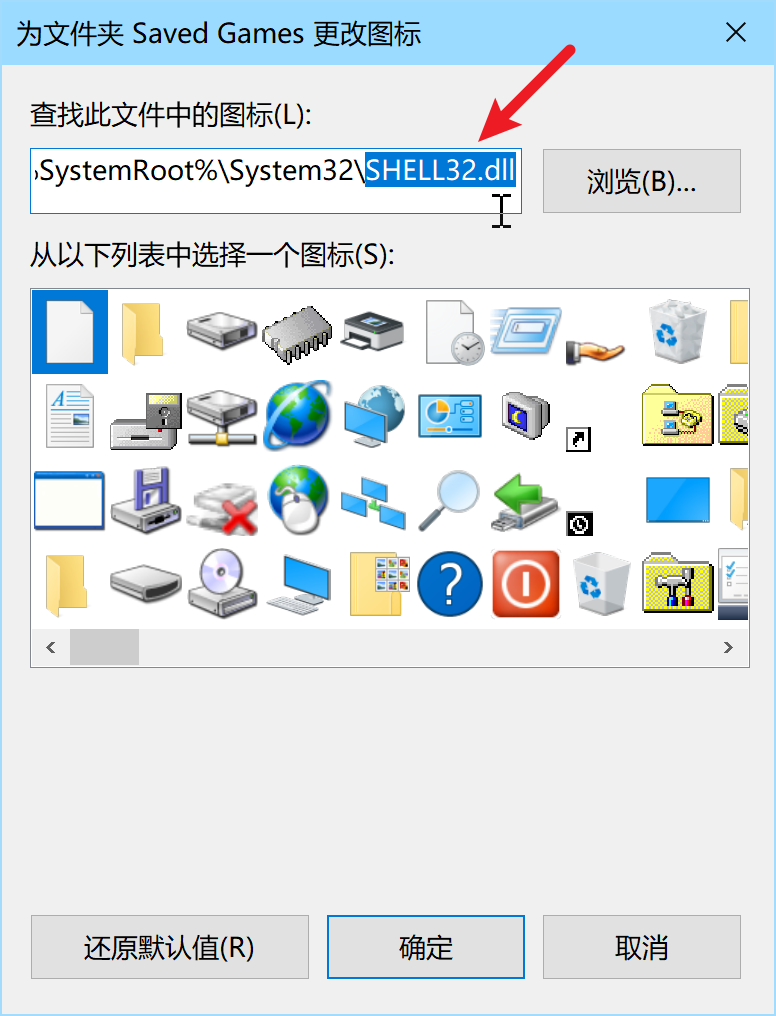
I went through the DLL files listed in the article and eventually found the Saved Games icon in imageres.dll, along with the icons for Desktop, Videos, and others.
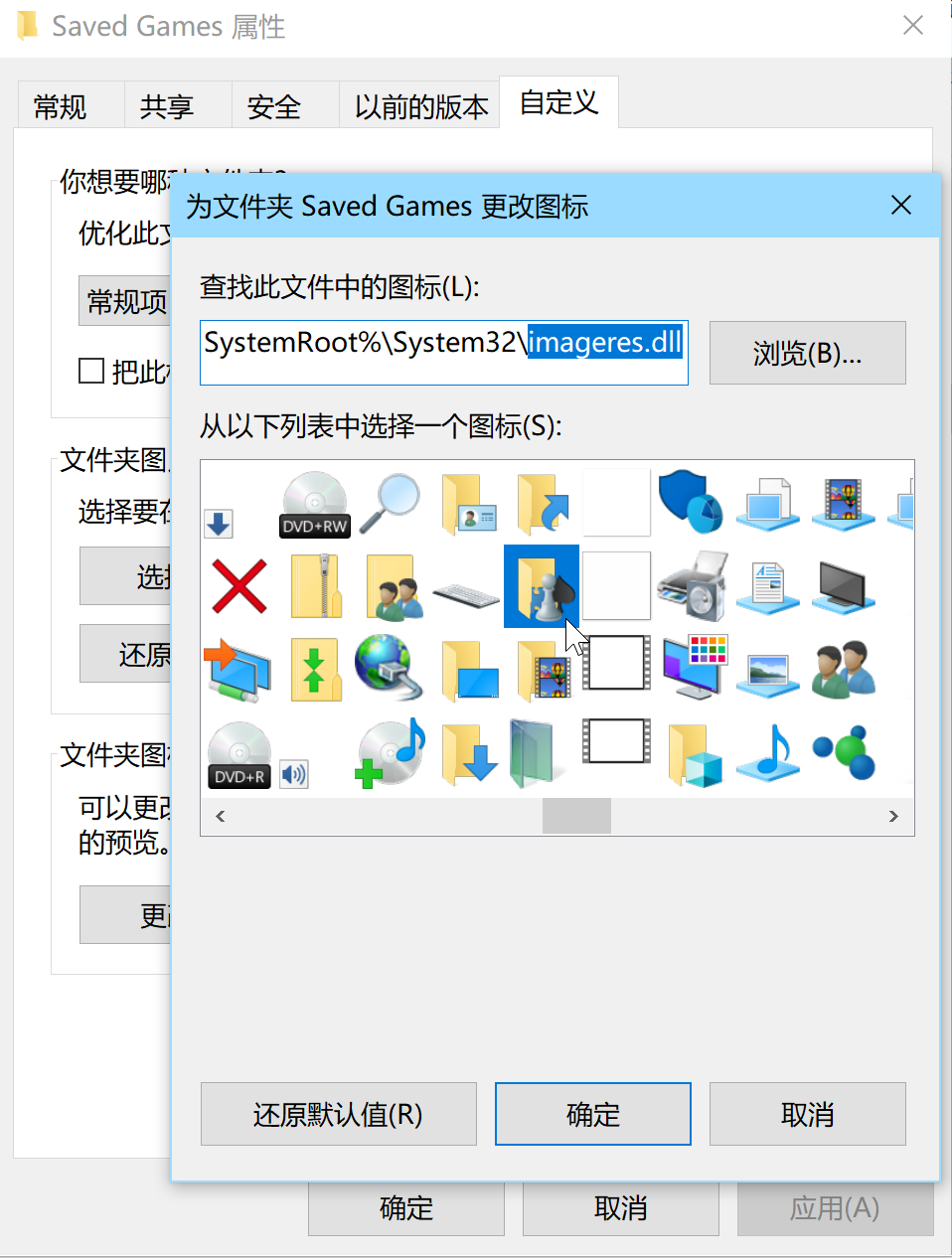
Once the icon was linked to the correct resource, it’s icon was restored.
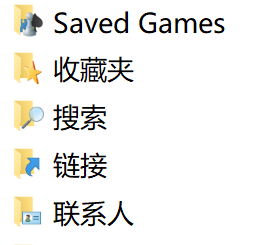
On an English-language system, this completes the recovery. On other systems, the folder’s localized display name may still need to be restored. For example, on Simplified Chinese systems, the folder should display 保存的游戏 while keeping the actual folder name Saved Games.
4.2 Restoring a Localized Display Name
Searching for how to make a folder’s display name differ from its actual folder name, I found the following solution:
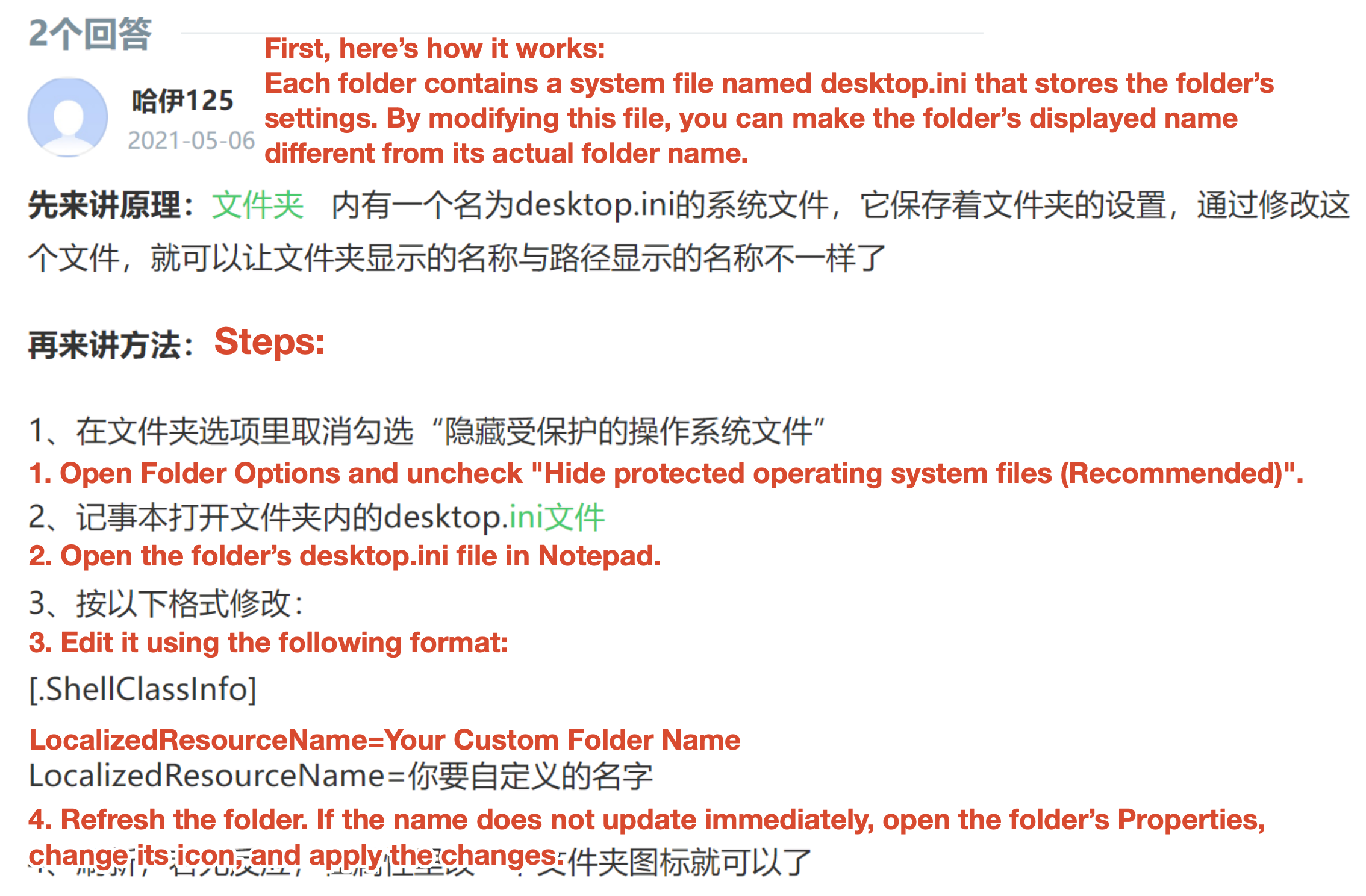
Steps:
- Open the target folder in File Explorer.
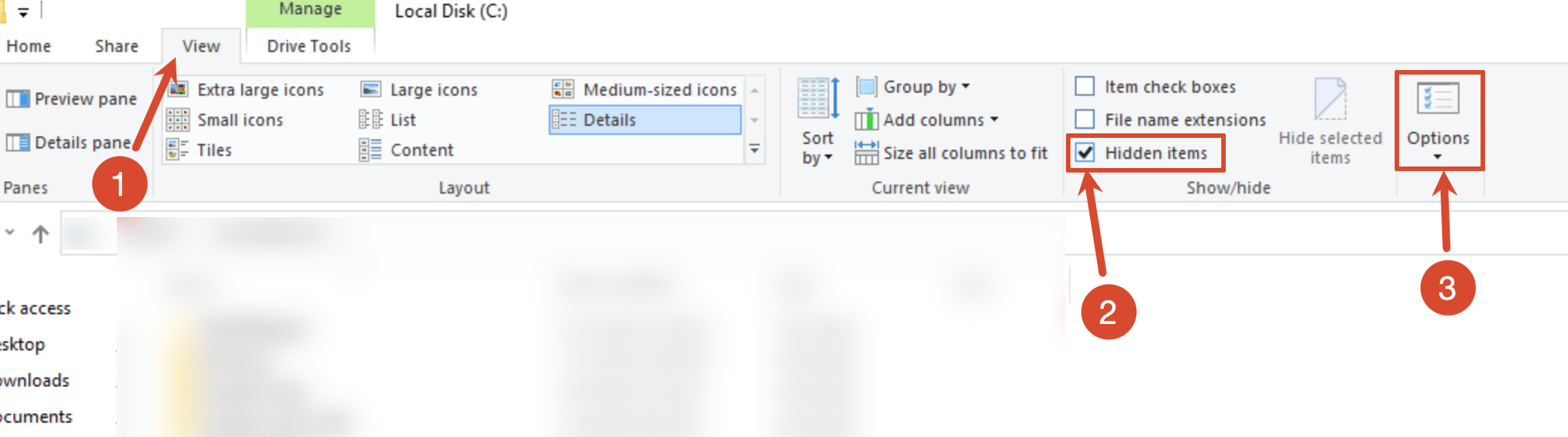
- Click the View tab on the toolbar of the File Explorer window.
- Check the Hidden items box, then click Options.
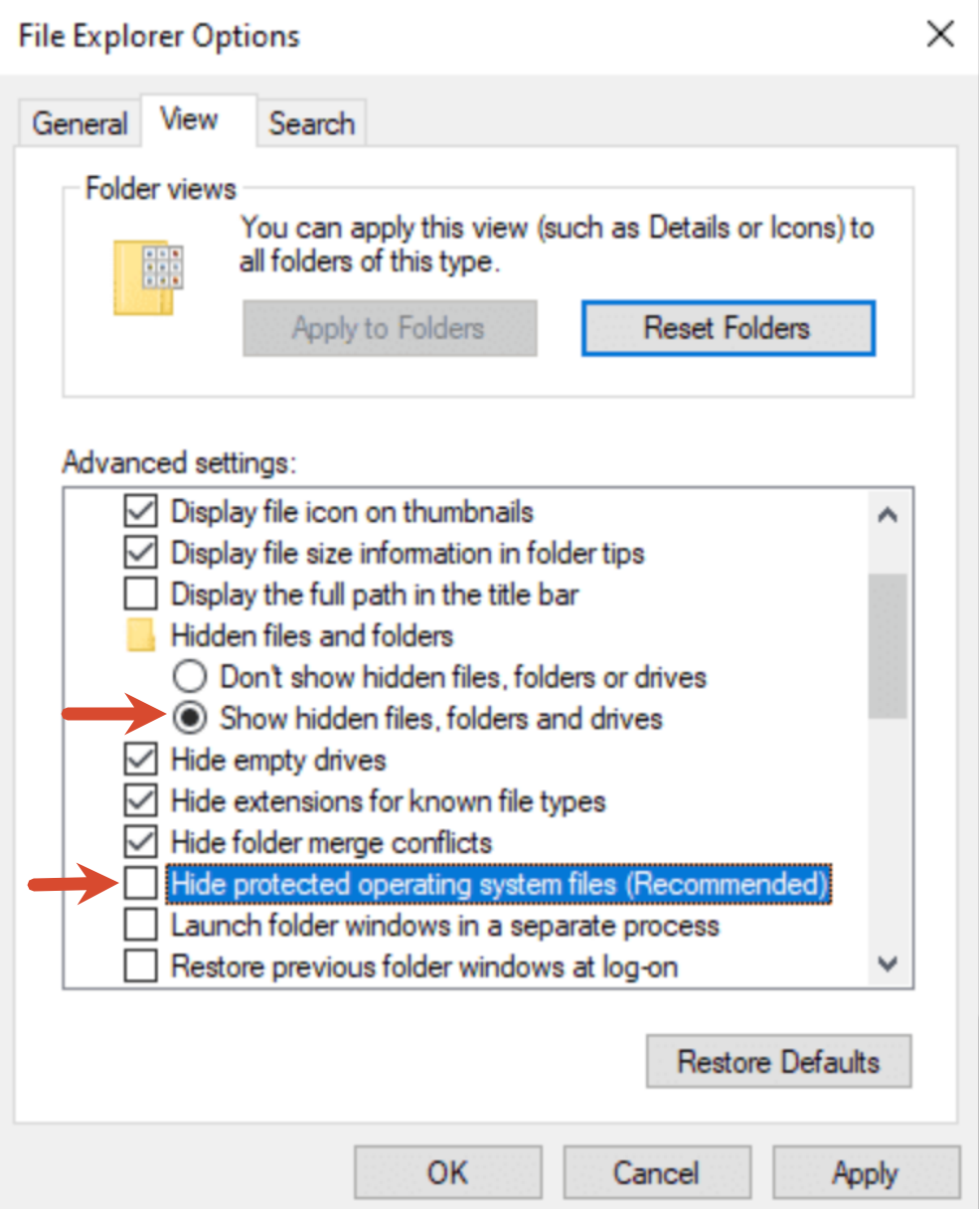
- Click the View tab.
- Uncheck “Hide protected operating system files”, then click Yes and OK to confirm change.
A desktop.ini file now appears inside the Saved Games folder.
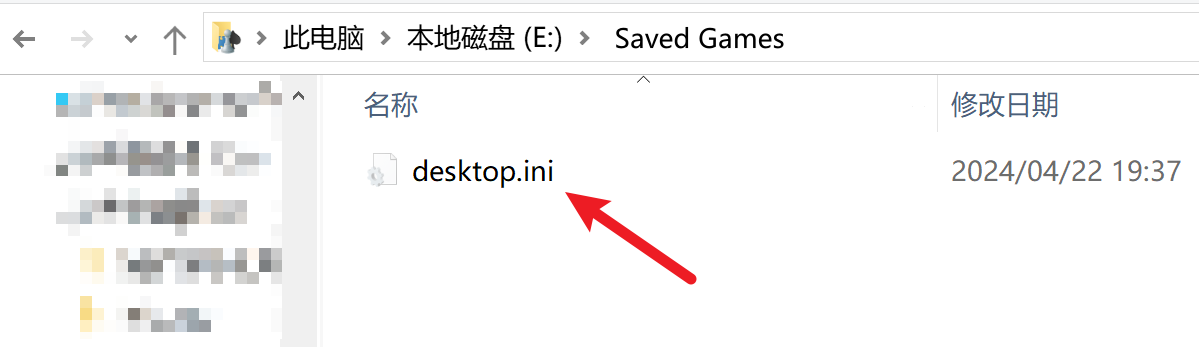
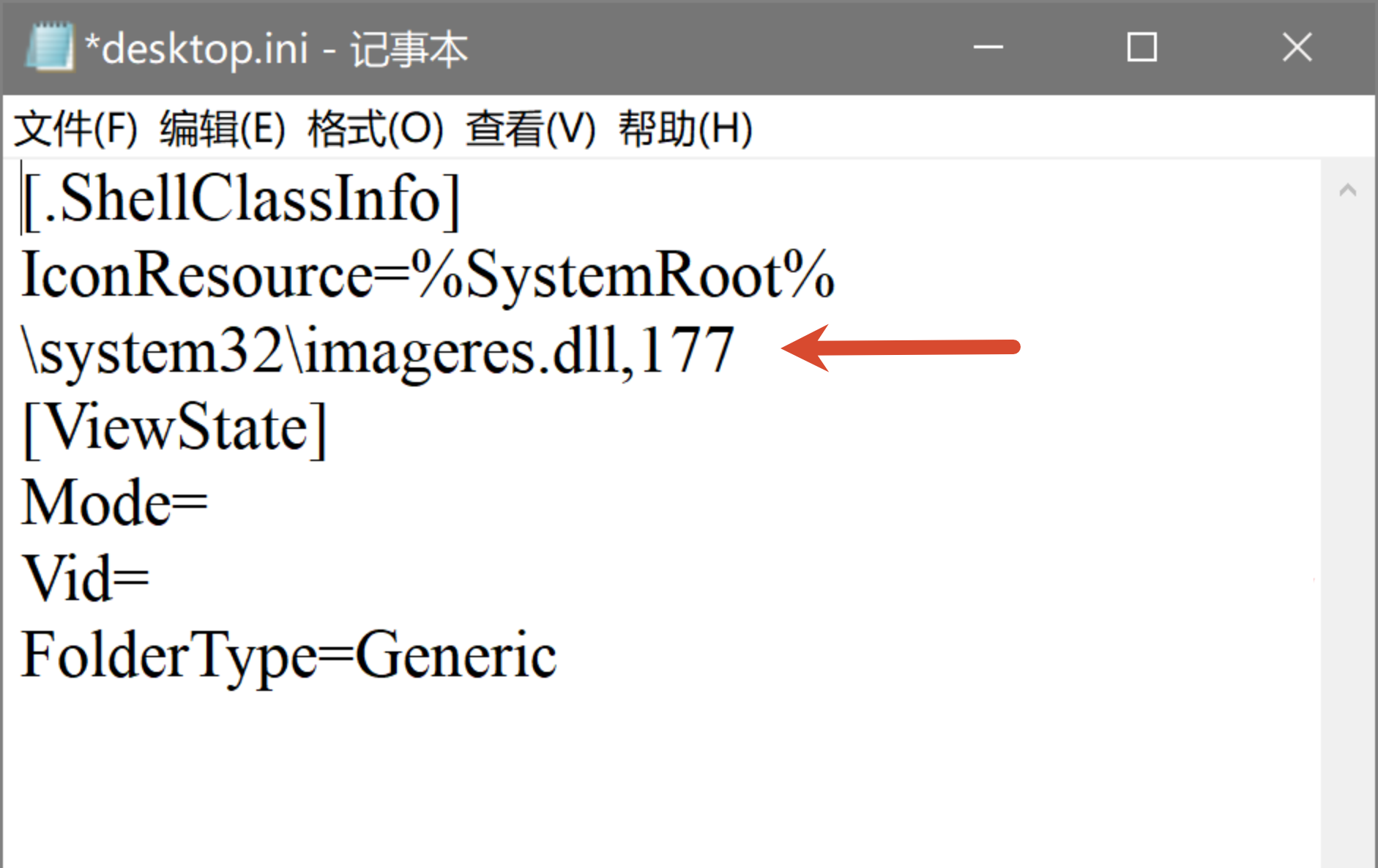
Step 6: Open it in Notepad.
We can see the IconResource entry is pointing to imageres.dll, which is the icon we restored previously.
Following the guide, I added the following line to desktop.ini (Figure 18):
LocalizedResourceName=保存的游戏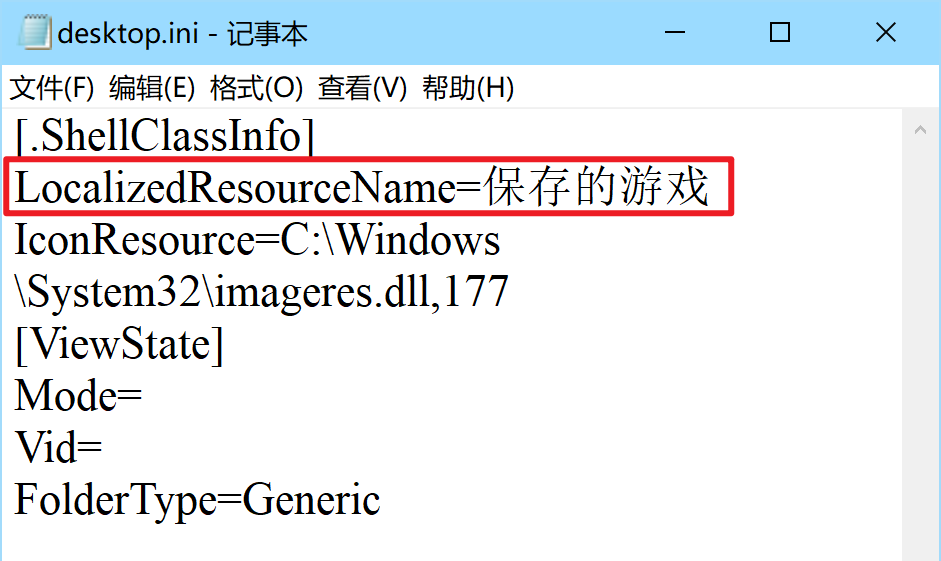
After saving, however, the name appeared as garbled text (Figure 19). English displayed correctly while the Chinese characters turned into mojibake, indicating that the file encoding was wrong.

Method 1: Change the File Encoding1
The bottom-right corner of Notepad showed the current encoding as UTF-8, but desktop.ini should be saved as UTF-16 LE.
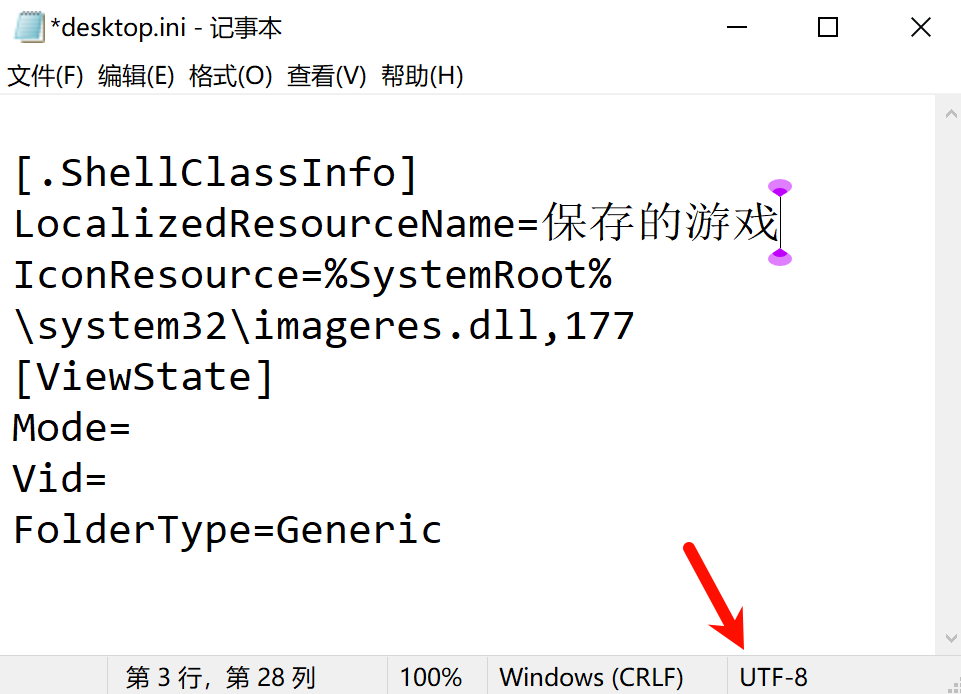
To avoid garbling the Chinese name, enter it and then click File > Save As.
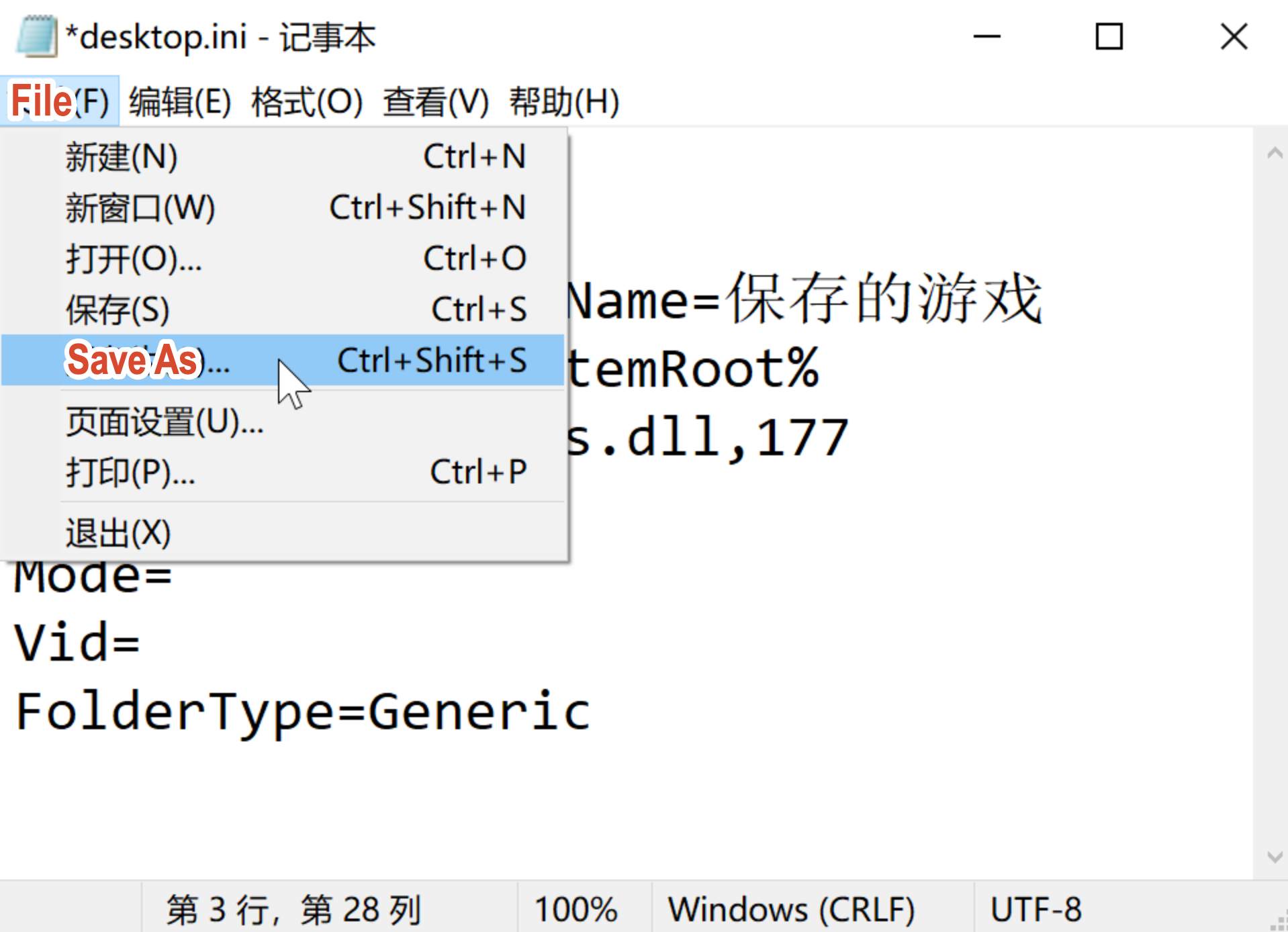
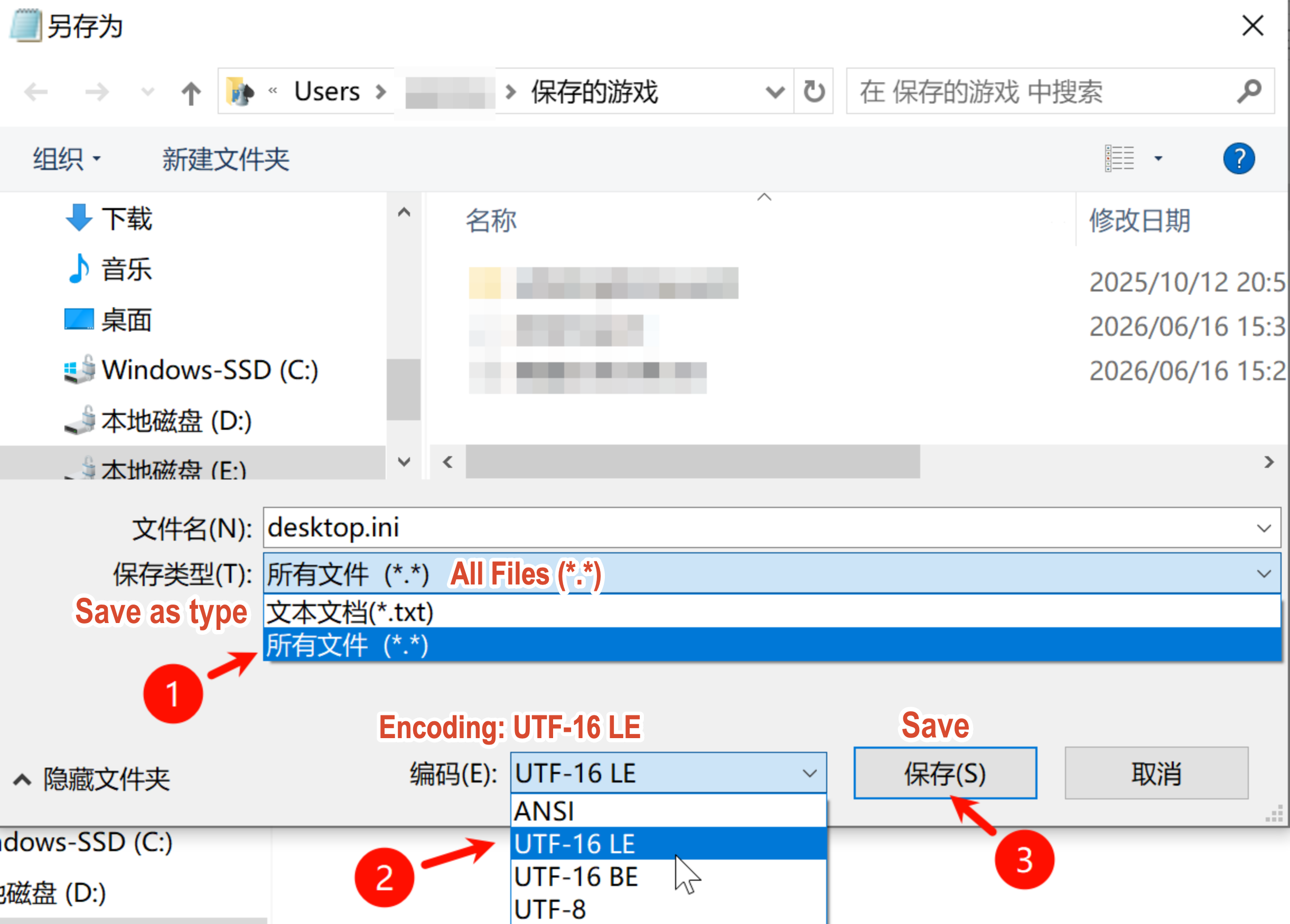
Set Save as type to All Files (*.*) and Encoding to UTF-16 LE, then save and overwrite the original file.
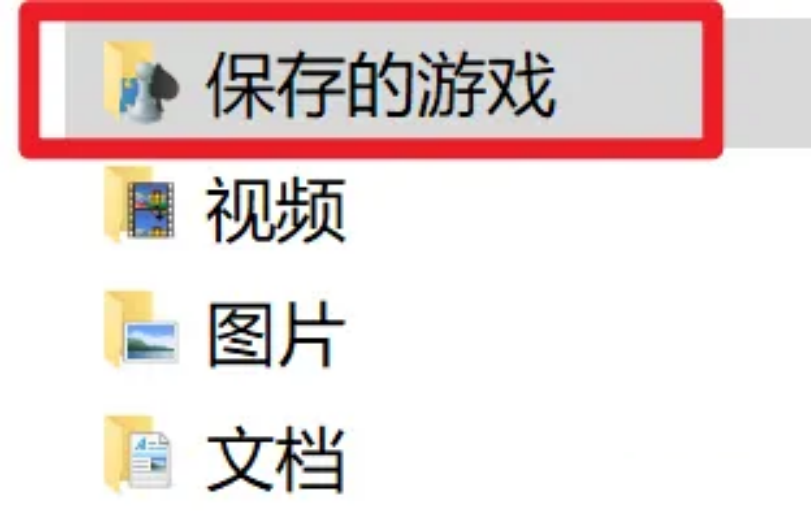
A moment later, the display name was restored.
Method 2: Reference a Resource Index
Instead of changing the encoding, you can also reference a resource index. The index points to a localized string inside shell32.dll file, which resolves to the display name according to your Windows display language.
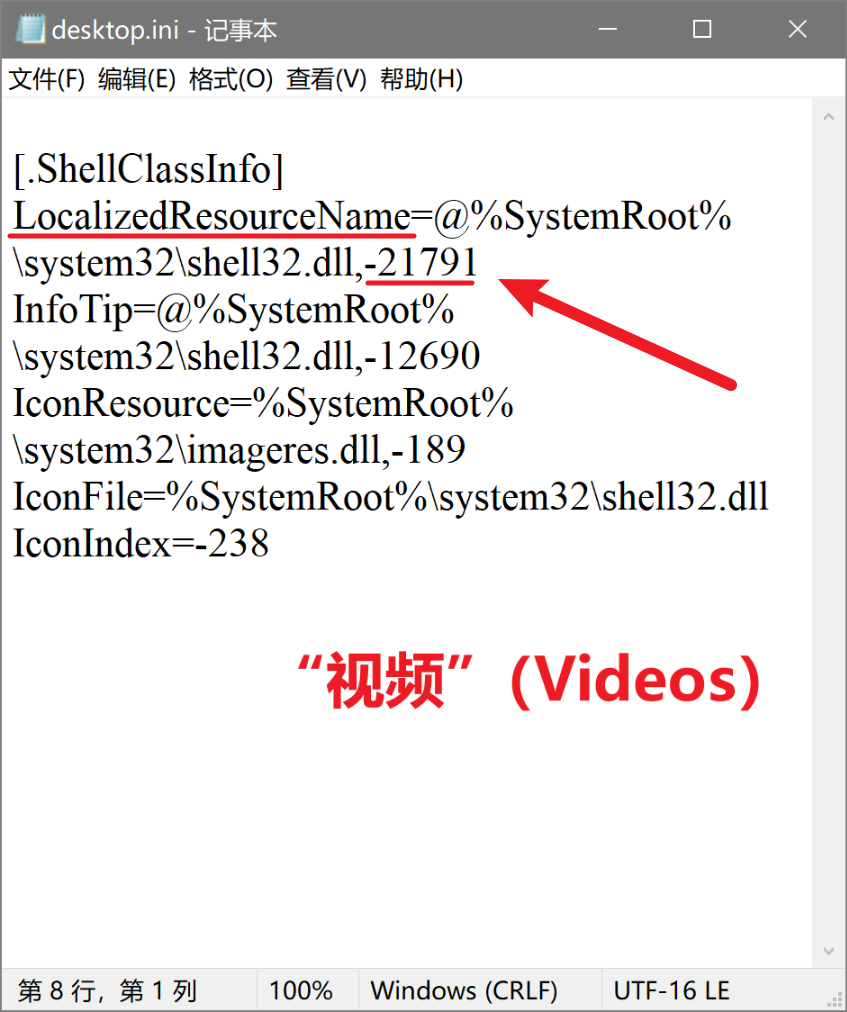
For example, Figure 24 shows the LocalizedResourceName entry in the original desktop.ini file of the Videos folder is pointing to the resource in shell32.dll with the index -21791.
I thus started to looking for name resource indices inside shell32.dll , but the results covered mainly icon resources instead of name resources.
Then, I turned to AI for help, but ChatGPT gave me fabricated answers .
When I asked how to inspect the contents of shell32.dll, ChatGPT recommended Visual Studio.
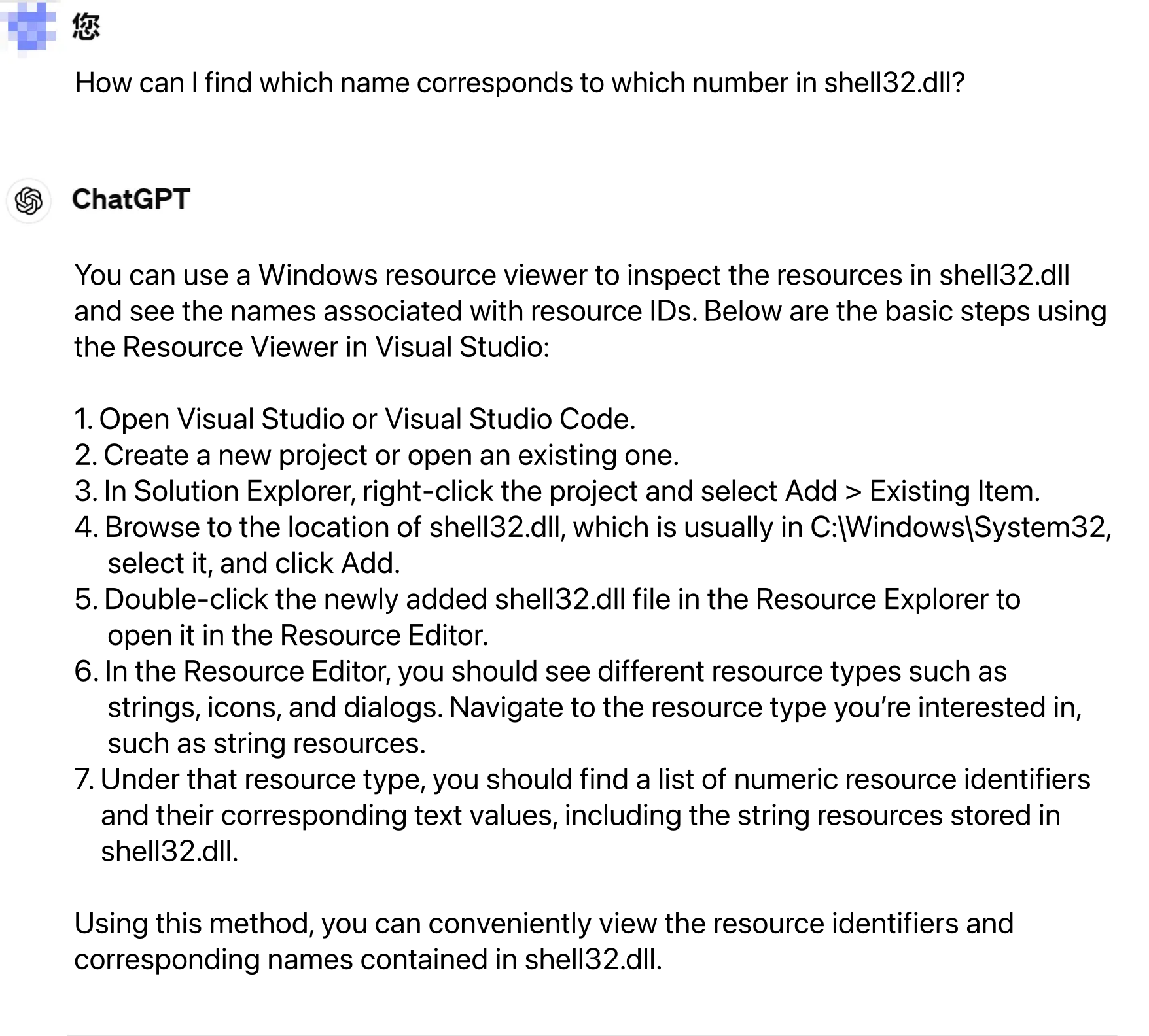
With no programming background, I mistakenly downloaded Visual Studio Code instead. It became my first encounter with an IDE. Later, when my professor noticed I was doing assignments in VSCode rather than Jupyter and asked why, I just pulled up this article .

Following ChatGPT’s instructions, I created a new solution in Visual Studio and loaded C:\Windows\System32\shell32.dll to view its resource directory.
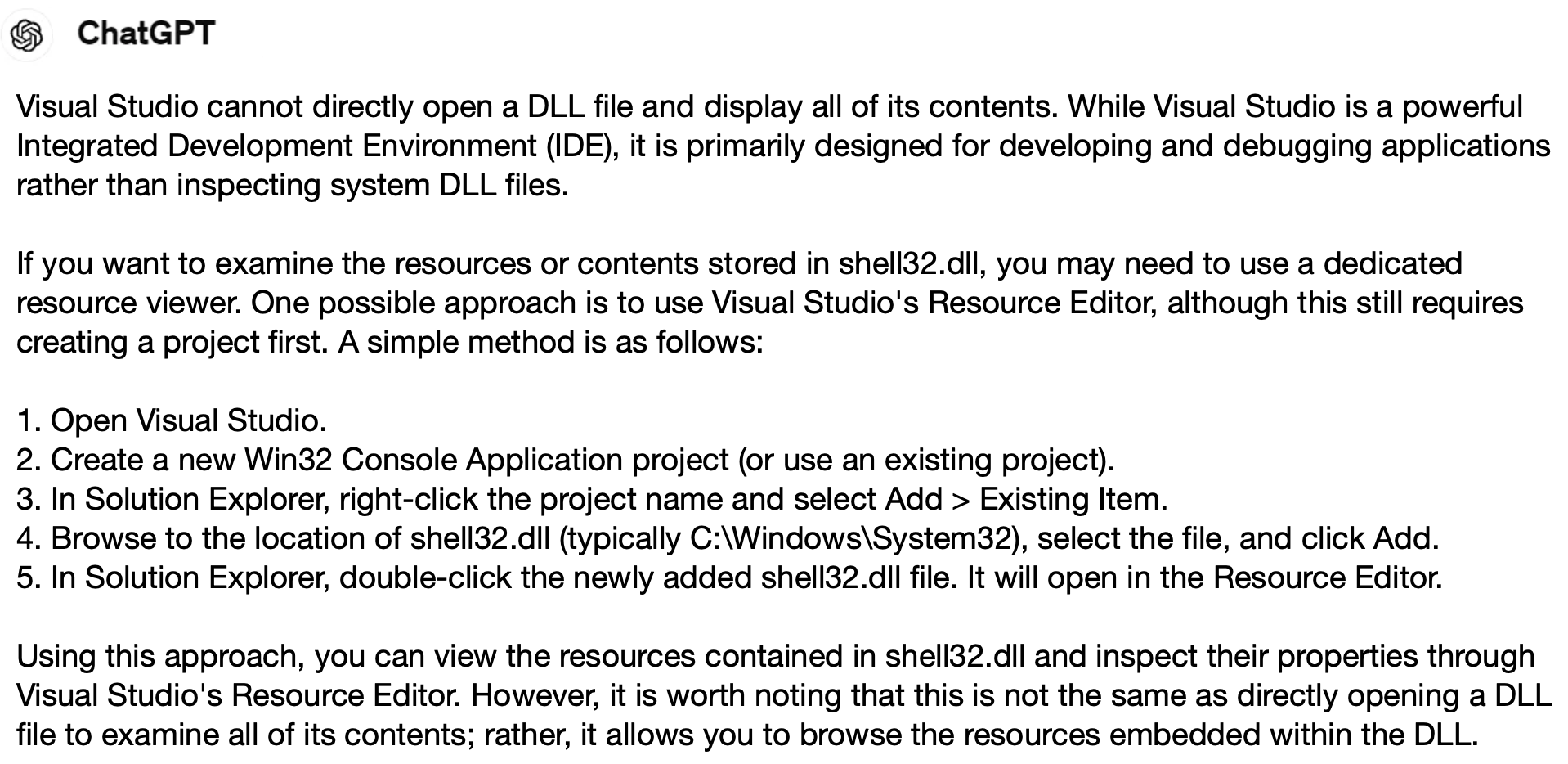
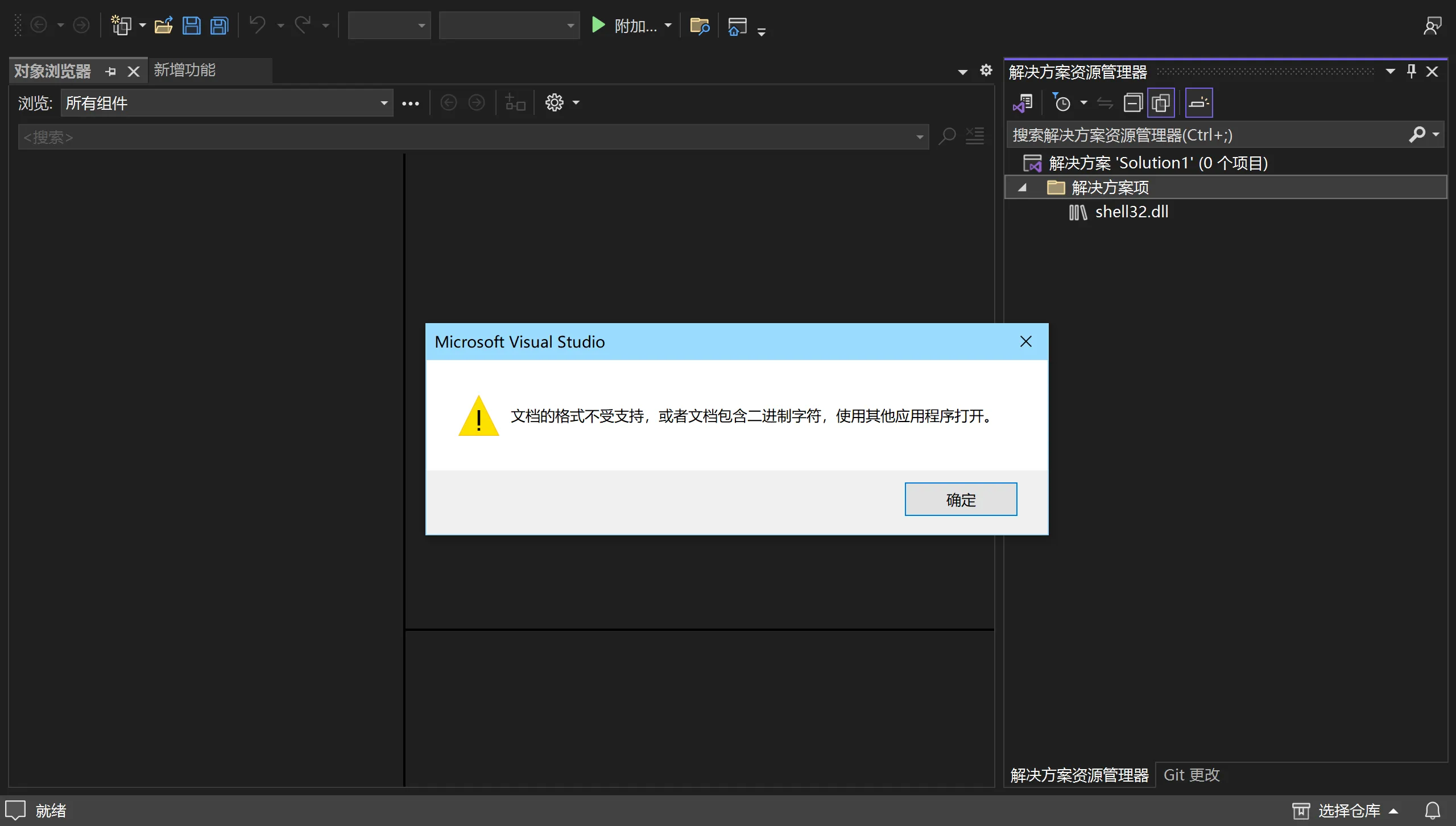
Visual Studio showed only the structure of the resource directory, not the actual entry indices. Since shell32.dll is very large, checking every entry by hand was not realistic.
In the end, I compared the desktop.ini file with one from another computer that hadn’t be modified. The correct resource index turned out to be -21814 — just four numbers away from the -21810 I had tried earlier. I might have found it with a few more guesses .
I added the following line to the desktop.ini in the Saved Games folder:
LocalizedResourceName=@%SystemRoot%\system32\shell32.dll,-21814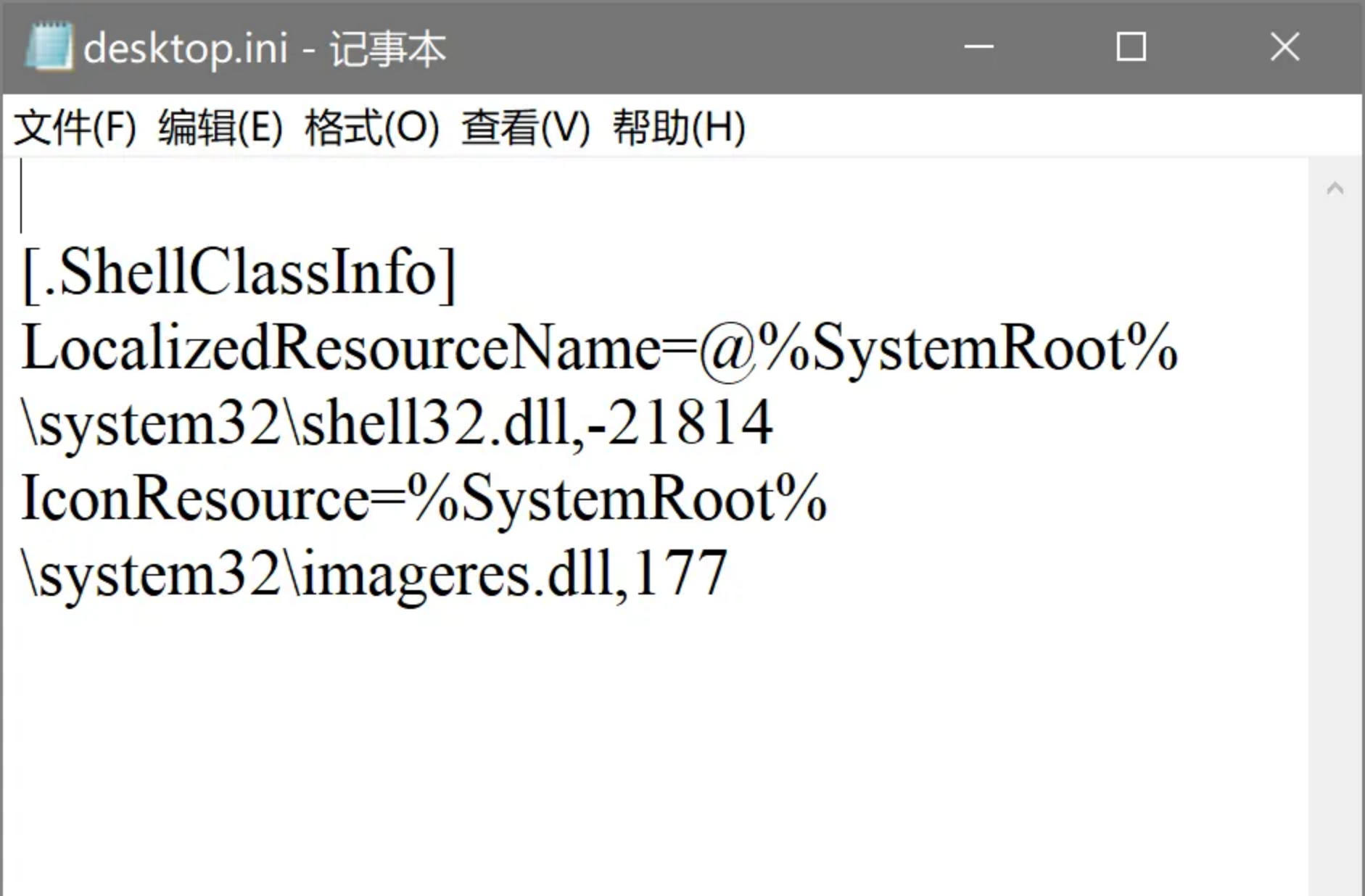
More resource indices of display names and icons for common shell folders are listed in Table 1.
Saved Games shell folder is finally fully restored!
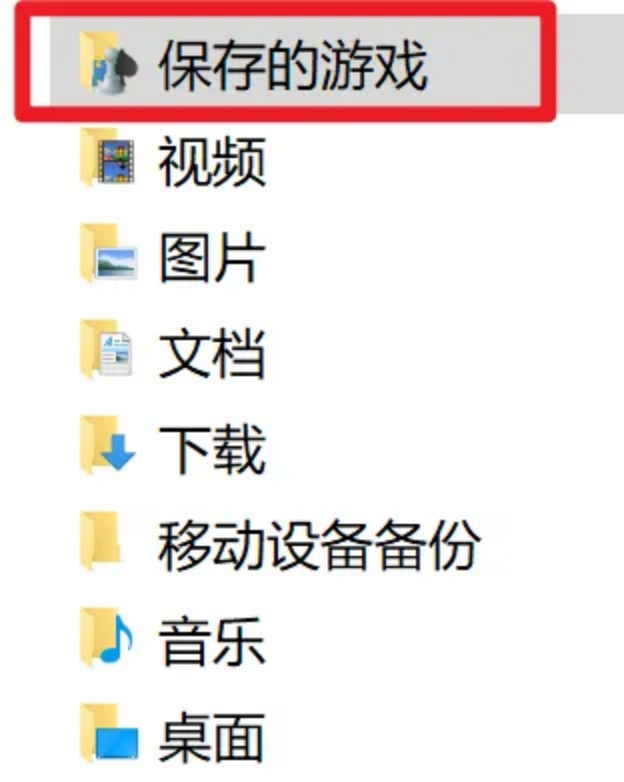
So far, both the icon and the display name were restored to their defaults.
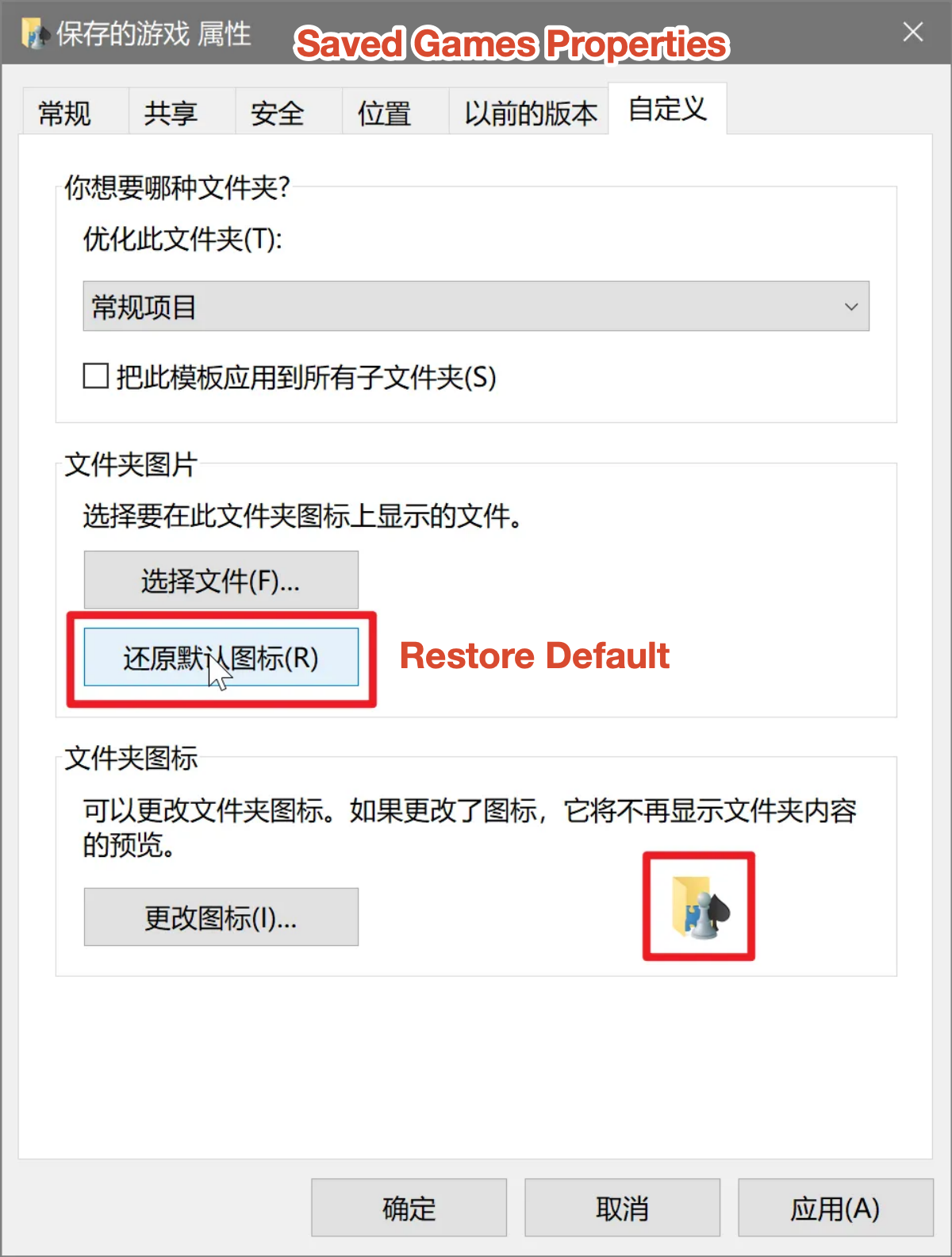
Lesson Learned: When moving a shell folder, change only the drive letter in the path. Do not set the bare root directory as the destination.
Appendix: Resource Indices for Shell Folders
Use the icon resource index to restore a folder’s icon (needed on every system):
IconResource=%SystemRoot%\system32\imageres.dll,<IconResource index>If your Windows display language gives the folder a localized name (see Restoring a Localized Display Name), also set the name resource index. It points to a localized string in shell32.dll, so the same number resolves to whatever your system language is:
LocalizedResourceName=@%SystemRoot%\system32\shell32.dll,<NameResource index>For example, for the Pictures folder:
Pictures\desktop.ini
LocalizedResourceName=@%SystemRoot%\system32\shell32.dll,-21779
IconResource=%SystemRoot%\system32\imageres.dll,-113
Note: the display-name resources for Contacts and 3D Objects come from other DLL files, not
shell32.dll(see Footnotes).
| Folder | Name Resource Indices2 | Icon Resource Indices3 |
|---|---|---|
| 桌面 (Desktop) | -21769 | -183 |
| 文档 (Documents) | -21770 | -112 |
| 图片 (Pictures) | -21779 | -113 |
| 音乐 (Music) | -21790 | -108 |
| 视频 (Videos) | -21791 | -189 |
| 下载 (Downloads) | -21798 | -184 |
| 搜索 (Searches) | -9031 | -18 |
| 链接 (Links) | -21810 | -185 |
| 收藏夹 (Favorites) | -21796 | -115 |
| 保存的游戏 (Saved Games) | -21814 | -177 |
| 联系人 (Contacts) | wab32res.dll, -101004 | -181 |
| 3D对象 (3D Objects) | windows. |
-198 |
Footnotes
Added June 16, 2026↩︎
Unless marked otherwise, name resources come from
@%SystemRoot%\system32\shell32.dll,<index>.↩︎Icon resources come from
%SystemRoot%\system32\imageres.dll,<index>.↩︎The Contacts name resource comes from
@%CommonProgramFiles%\system\wab32res.dll,-10100.↩︎The 3D Objects name resource comes from
@%SystemRoot%\system32\windows.storage.dll,-21825.↩︎