Notion Database Auto-Sync Tips
1 Introduction
I recently restructured the Notion databases behind this website’s change log. The site originally relied on a single database with mostly manual properties. Although AI agents generated much of the cell content, maintaining the database by hand remained tedious.
Since I already tracked development tasks in a separate database through Notion Calendar, I linked the two databases and used Rollups and Formulas to populate the change log’s properties automatically.
Section 2 covers the database structure and workflow, and Section 3 shares key lessons I learned while building the auto-sync.
2 Database Structure
This Quarto website uses two project-specific databases — one for the development track, one for the change log — plus a general database that tracks all projects. Once the data are populated, a Python script fetches the latest data and a Lua filter renders the Change Log page. The workflow is shown below:


2.1 Tasks Database
The Dev Track database stores each daily task as one entry. It holds a Relation property linking to the Change Log database, along with basic properties such as timeline and hours.
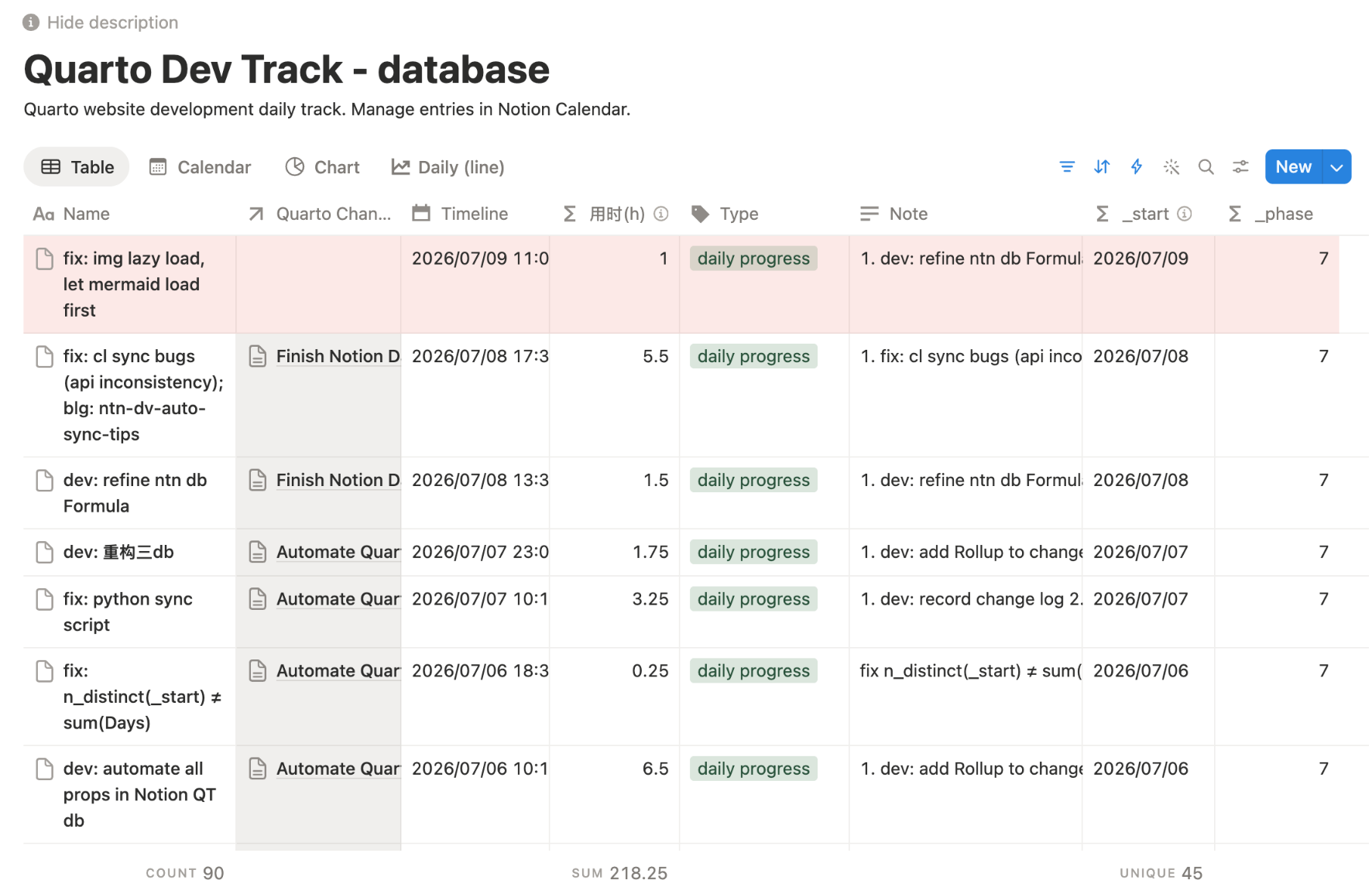
Interestingly, rather than adding each row through Notion’s UI, I record tasks in Notion Calendar, which gives a clear calendar view and lets me take notes while doing tasks.
2.2 Progress Database
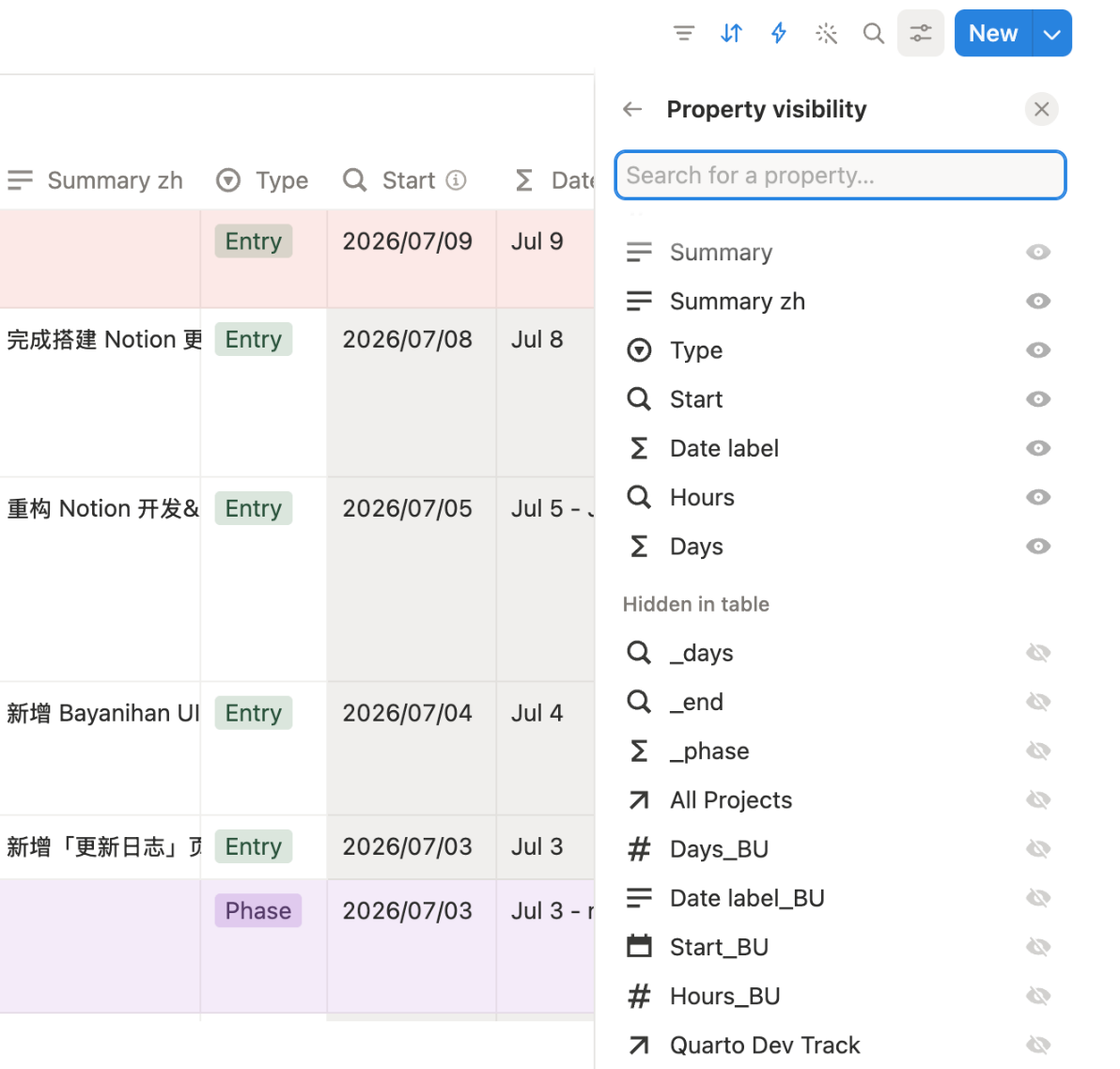
The Change Log database records the website’s progress by phase. Each entry relates to several tasks in the Dev Track database and aggregates them into Rollup properties such as Start (the actual start date, where a start time before 5 AM counts toward the previous day) and Hours (the total time span of all tasks in the period).
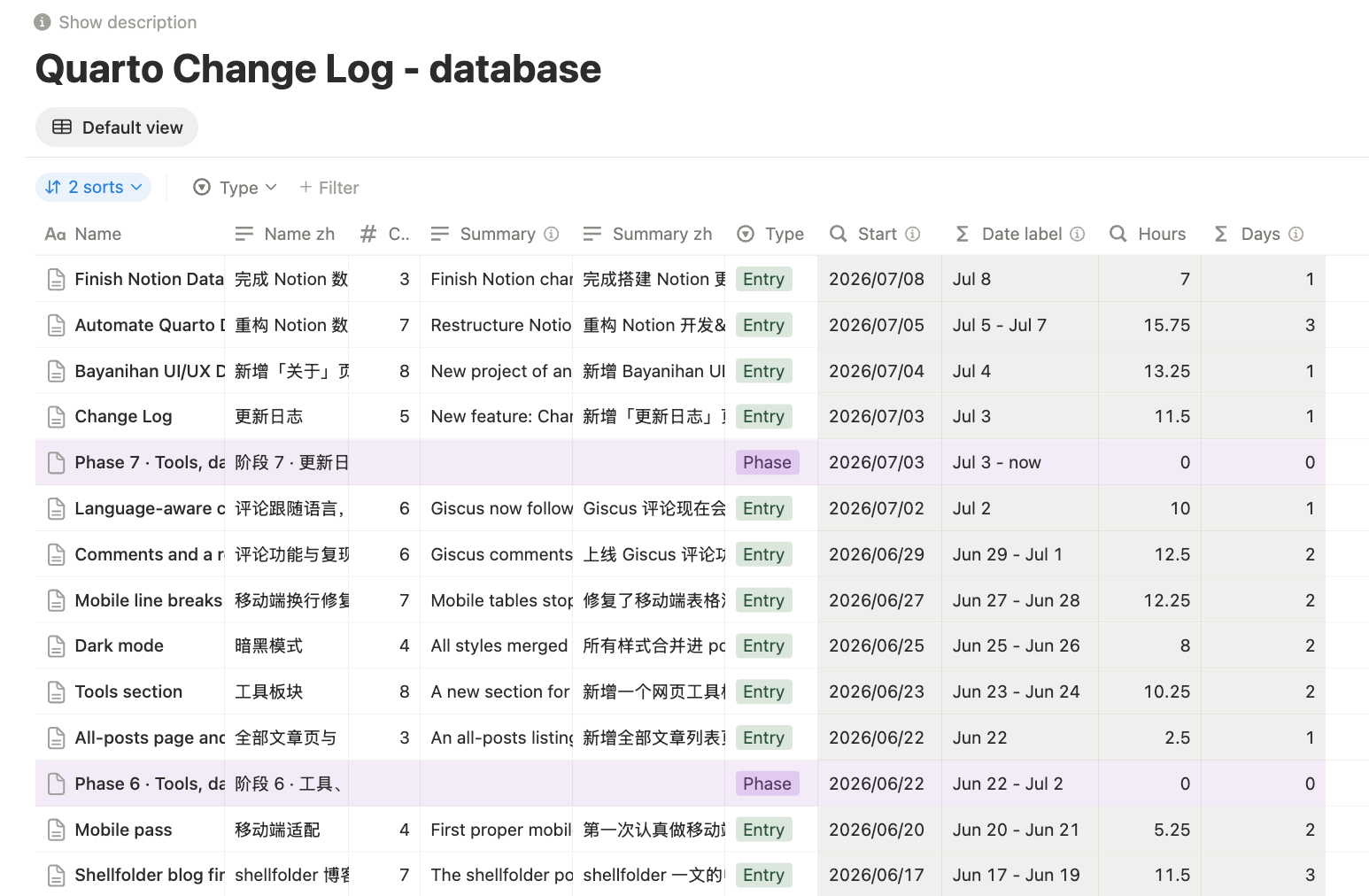
Formula properties compute and return formatted results. For example, the Date label property evaluates whether an entry’s period spans one day or several, and for the latest phase it returns <start> - now.
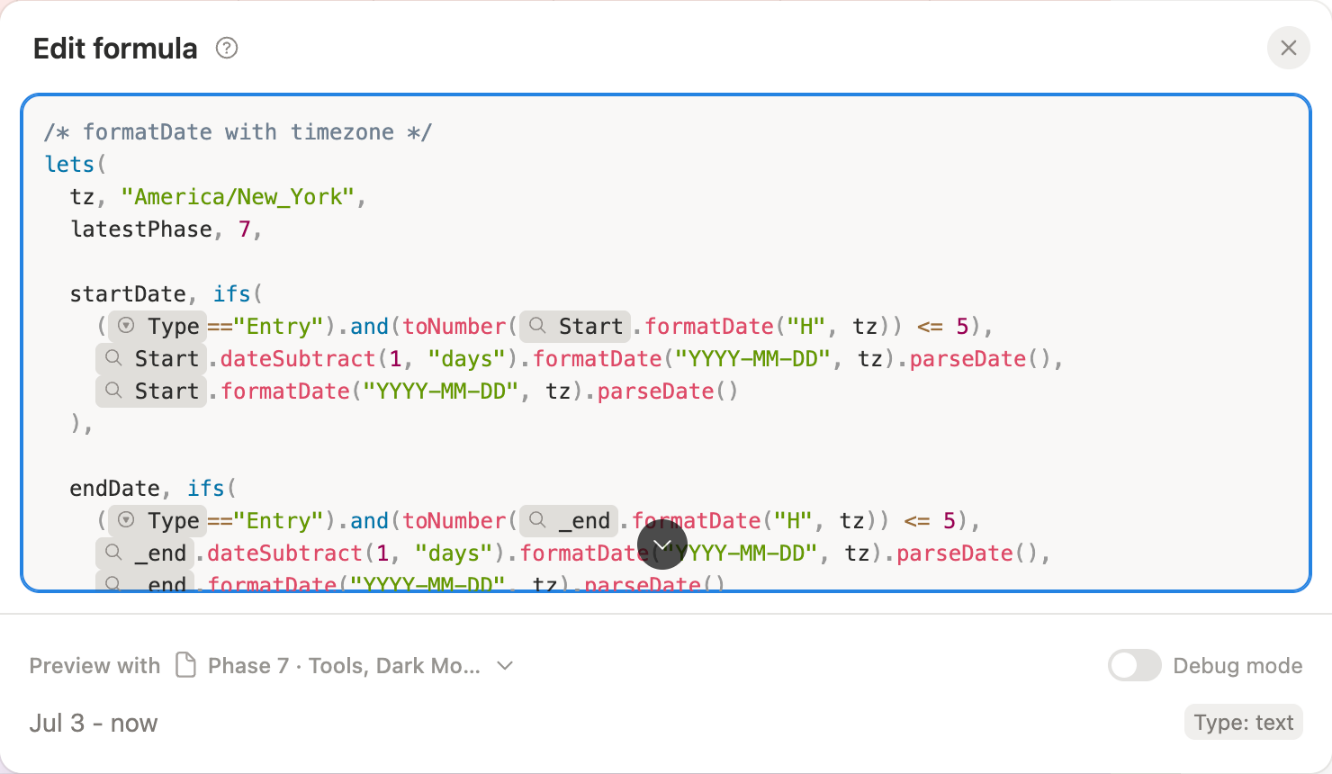
Hidden properties support these calculations: _days feeds Days, and _end and _phase feed Date label. The _BU suffix marks a backup of the original manually edited property.
2.3 Projects Database
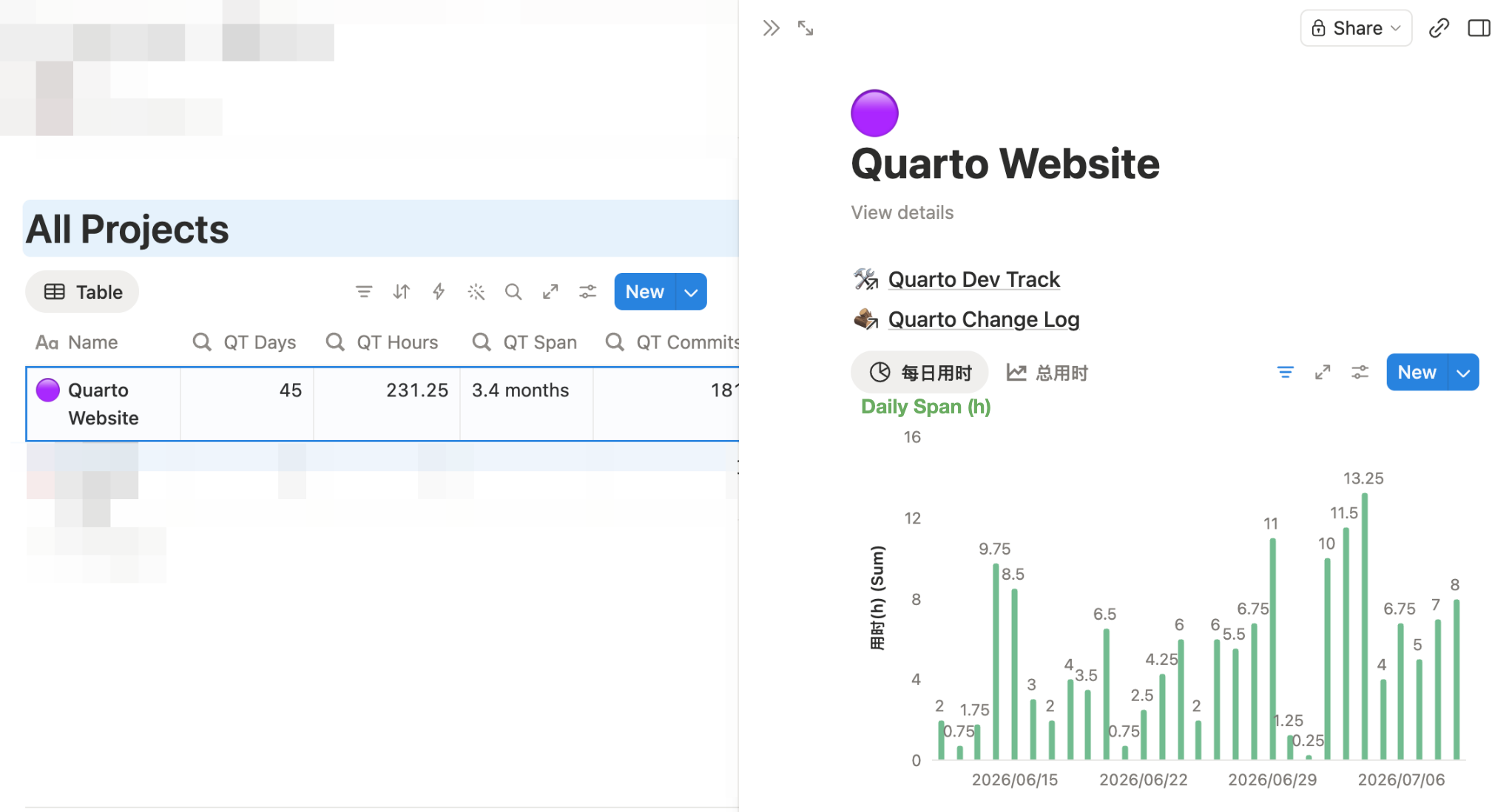
The All Projects database collects every project and displays overall rollup statistics. Each page in it also serves as a dashboard for managing the sub-database panels and chart views.
3 Tips for Building Sync with Formulas
3.1 Timezone
After replacing the manual properties with Formulas and Rollups, I found that date Formula properties returned different values in the Notion UI and the API. For example:
prop("Timeline").dateStart().formatDate("YYYY-MM-DD").parseDate()This Formula strips the time from the Timeline’s start date and returns a pure date. It works in the Notion UI regardless of your workspace timezone, but the API can return a different date.
The cause is that formatDate() parses and outputs in UTC+0. If your timezone is UTC-4, the result is off by 4 hours.
The fix is to pass a timezone argument to formatDate() whenever your timezone isn’t UTC+0.
prop("Timeline").dateStart().formatDate("YYYY-MM-DD", UTC-4).parseDate()If your location observes Daylight Saving Time, use an IANA timezone name such as America/New_York instead of UTC-4.
3.2 Data Type
A Formula property doesn’t require a fallback for when the source property is empty. If you do set one, match the property’s own type.
Avoid empty() as a fallback: it breaks Chart Views. For example:
ifs(
    /* set empty() as fallback if $Timeline is empty */
    prop("Timeline") == empty(),
    empty(),

    /* if start time is before 5am, subtract 1 day */
    prop("Timeline").dateStart().hours() <= 5,
    prop("Timeline").dateStart().dateSubtract()
    .formatDate("YYYY-MM-DD", UTC-4).parseDate(),

    /* else: set start time */
    prop("Timeline").dateStart().formatDate("YYYY-MM-DD", UTC-4).parseDate()
)
This Formula reports the actual date of a task from the Timeline property, counting tasks started before 5 AM toward the previous day.
It works in standard views (table, list, calendar, etc.), but the property is unavailable as a Chart View X-axis.
The fix is to drop the empty() fallback. Either leave the fallback out entirely — the property stays empty when the source is empty, yet remains available in Chart Views — or use a date such as 1900-01-01 or today().
ifs(
    /* date fallback if $Timeline is empty */
    prop("Timeline") == empty(),
    parseDate("1900-01-01"),

    /* if start time is before 5am, subtract 1 day */
    prop("Timeline").dateStart().hours() <= 5,
    prop("Timeline").dateStart().dateSubtract()
    .formatDate("YYYY-MM-DD", UTC-4).parseDate(),

    /* else: set start time */
    prop("Timeline").dateStart().formatDate("YYYY-MM-DD", UTC-4).parseDate()
)
Apply the same rule to other types: "" for string, 0 for number, false for boolean, [] for list.
3.3 Reduce Runtime
Each Rollup property fetches all content from the source database again, so a database with many Rollups can become slow to manage. Keep the number of Rollups down: instead of pulling related data through several Rollups, combine one Rollup with Formulas.