Fix Snipaste Stuck on Top of the Screen
Windows
Software
Tips
Three ways to handle a frozen Snipaste paste that pins itself over the whole screen.
1 The Problem
- Operating system: Windows 10
- Snipaste version: 2.9.1
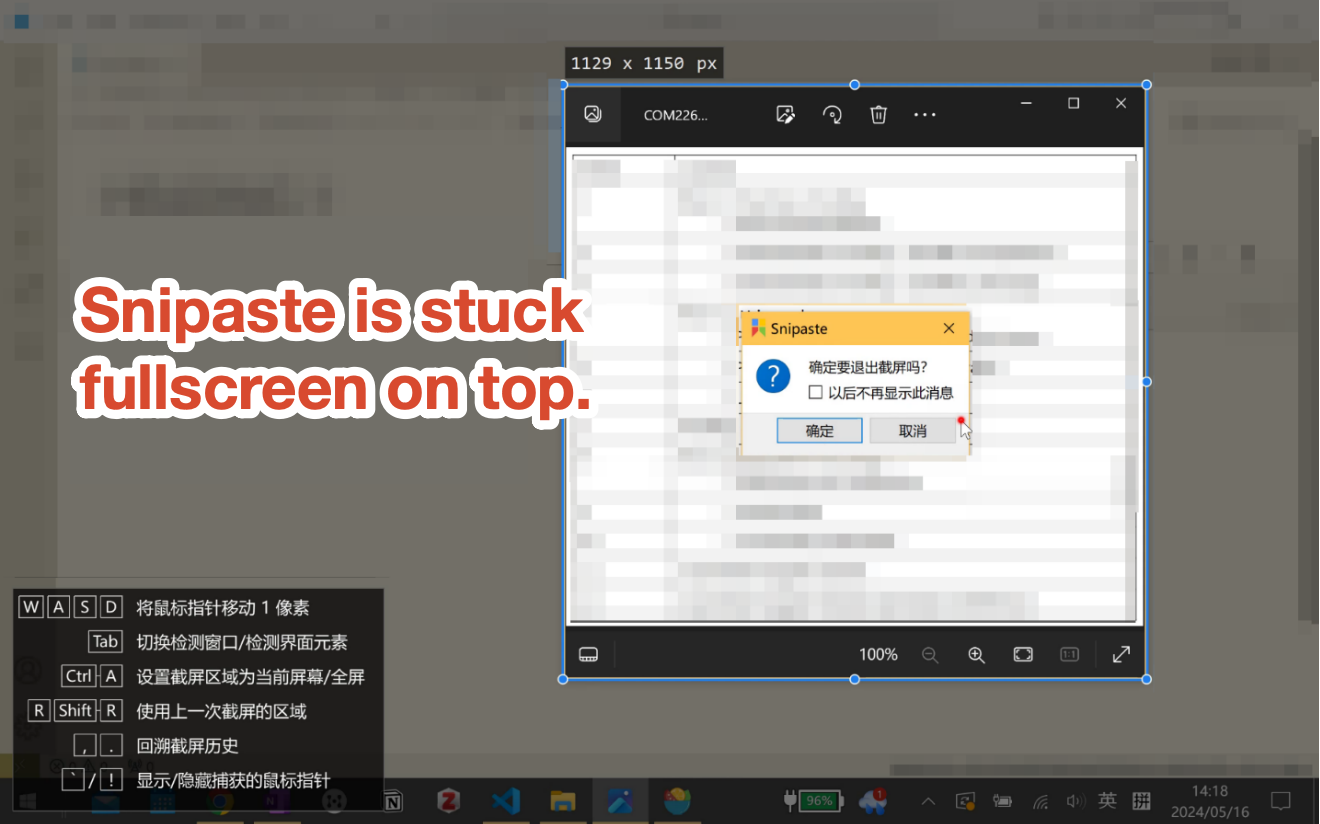
Snipaste froze while taking a screenshot. The paste pinned itself over the entire screen and could not be closed, and it blocked every other window.
2 Method 1: Kill the Snipaste Process
This takes advantage of how Snipaste replaces pastes: swap the full-screen paste for a small one first, then end the process.
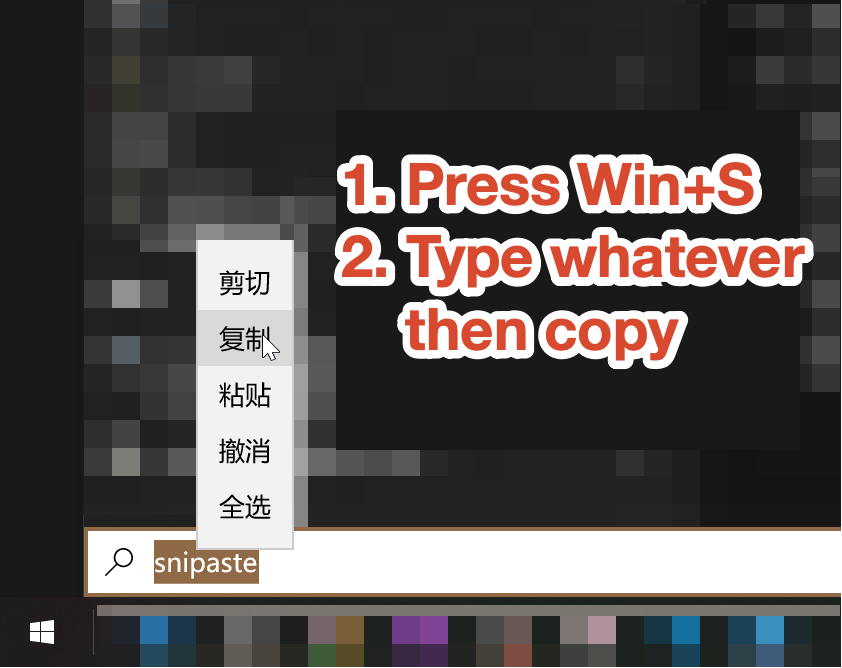
- Press
Win + Sto bring up the taskbar and the search bar. - Type one or two short words in the search box and copy them.
- Press
F3to paste. The new paste (the text you just copied) replaces the old full-screen one. It is still frozen, but small enough to leave the rest of the screen usable. - Press
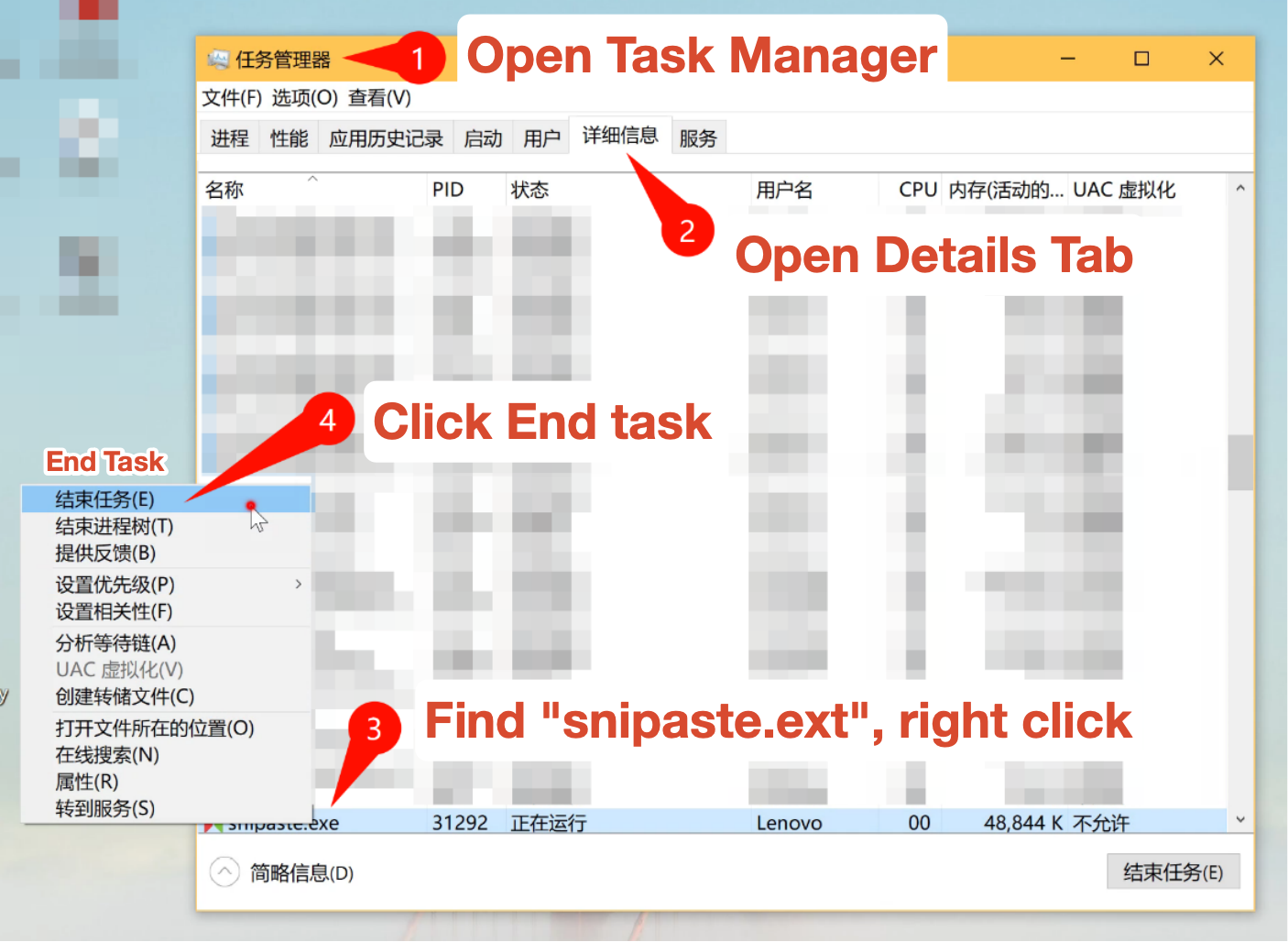
Ctrl + Shift + Esc(or right-click the taskbar) to open Task Manager, switch to the Details tab, findsnipaste.exe, right-click it, and end the task. Reopen Snipaste afterwards and it works normally.
3 Method 2: Restart the Computer
- Press
Win + D(or another shortcut such asWin + S) to bring up the taskbar. - Close all other programs from the taskbar, then restart the computer.
4 Method 3: Uninstall and Reinstall
- Press
Win + D(or another shortcut) to bring up the taskbar. - Open the Start menu, find Snipaste, right-click to uninstall, then install it again.