Quarto Image Centering Styles
1 Summary
To achieve all of the following in a Quarto Website:
- Control image width with
rem - Cross-reference hover preview displays correctly
- Image centering
- Image caption centering
Use the approach below.
1.1 Step 1: External CSS
.quarto-float.quarto-figure.quarto-figure-center.anchored {
    width: 100% !important;
}
Register it in _quarto.yml:
format:
  html:
    css:
      - path/to/style.css
1.2 Step 2: Page-level Internal CSS
Add a <style> tag at the top of the page (below the YAML block):
<style>
    figcaption {
        text-align: center;
    }
</style>
1.3 Step 3: Image Inline Styles
{#fig-a style="width:20rem;"}
{#fig-b style="width:15rem;"}This post is implemented using the approach above. Click
</> Codein the top-right corner of the page to view the full source.
Here is the full walkthrough:
2 Controlling Image Size
2.1 The Traditional Approach
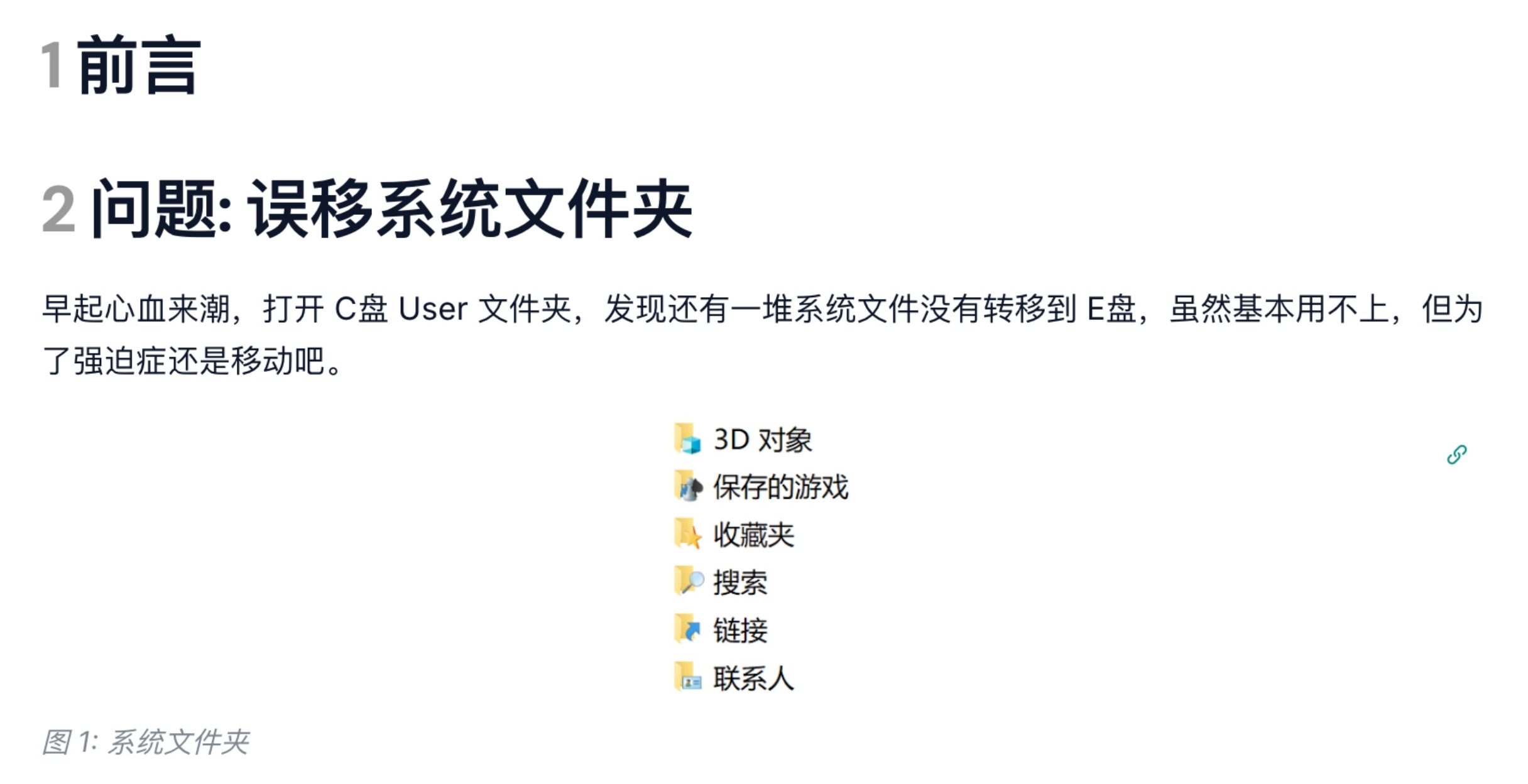
When writing my Quarto Website, I initially controlled image size using Quarto’s built-in width attribute:
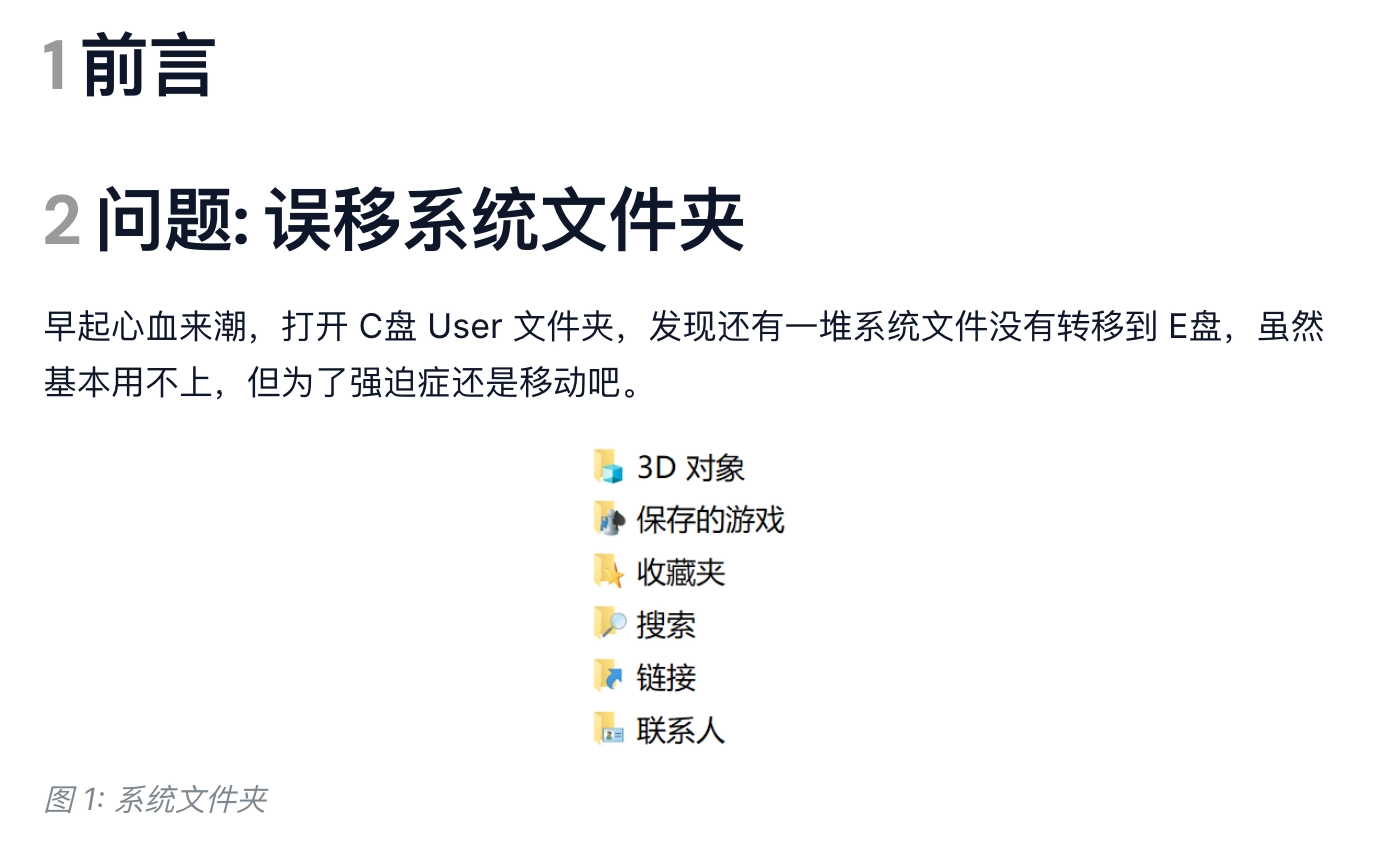
{#fig-title width="15%"}This approach is clean and intuitive — no need to write inline styles like style="width:15%" — and the results looked good.
2.2 Issue 1: Hover Preview Breaks
After using cross-references (e.g. @fig-title) in the body text, I noticed the hover preview inherited the width percentage, causing it to display incorrectly.

To fix this, I tried switching to rem as the width unit, which behaves consistently regardless of page scaling and hover context.
I first tried:
{#fig-title width="7rem"}This had no effect — Quarto’s width attribute does not support rem (it accepts px, percentages, etc.).
I then switched to:
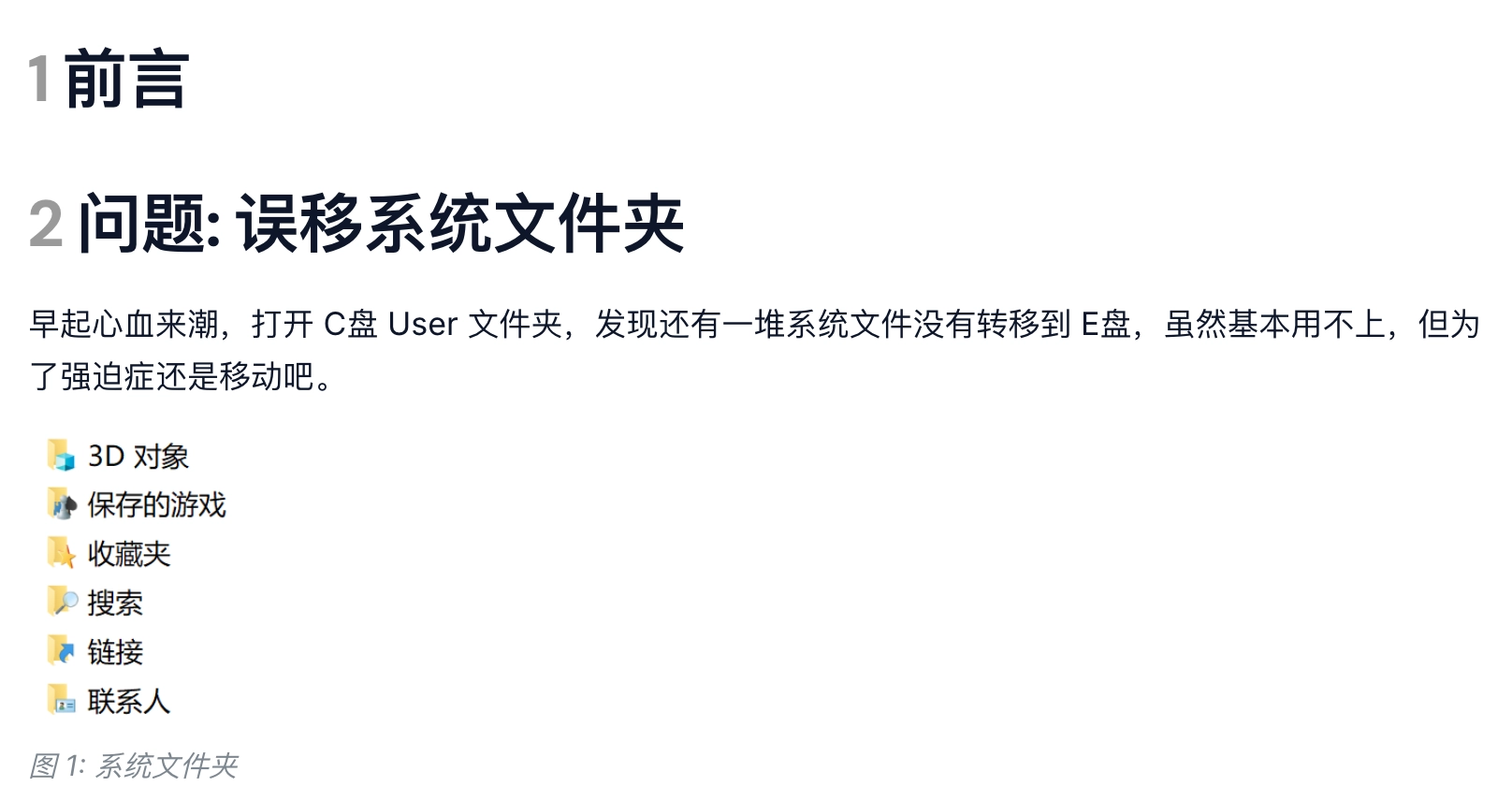
{#fig-title style="width:7rem;"}2.3 Issue 2: Image No Longer Centers
A new problem appeared: the image was no longer centered, and setting {fig-align="center"} had no effect.
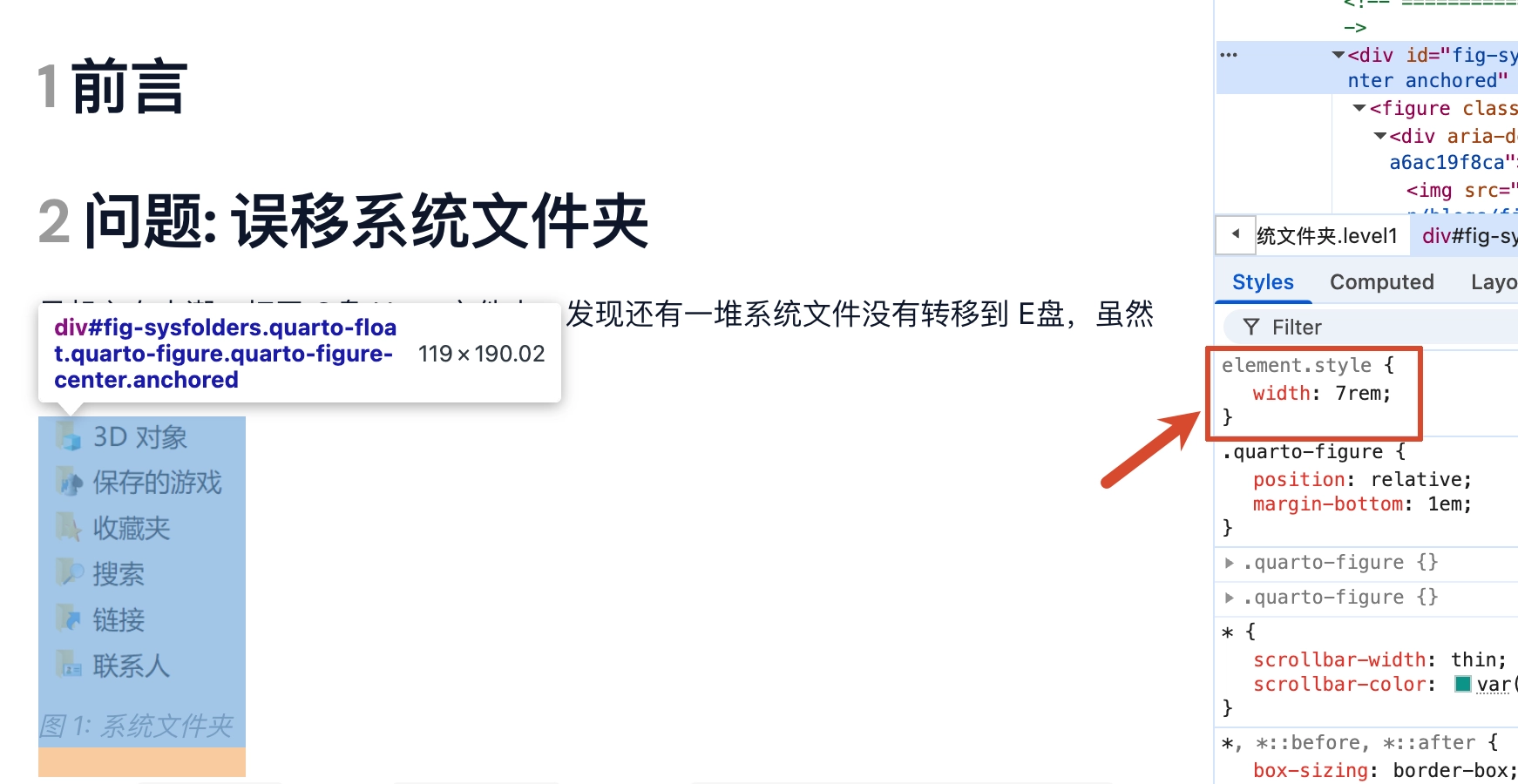
Inspecting with browser DevTools revealed that when style="width:7rem" is set, Quarto also constrains the parent container’s width to 7rem.
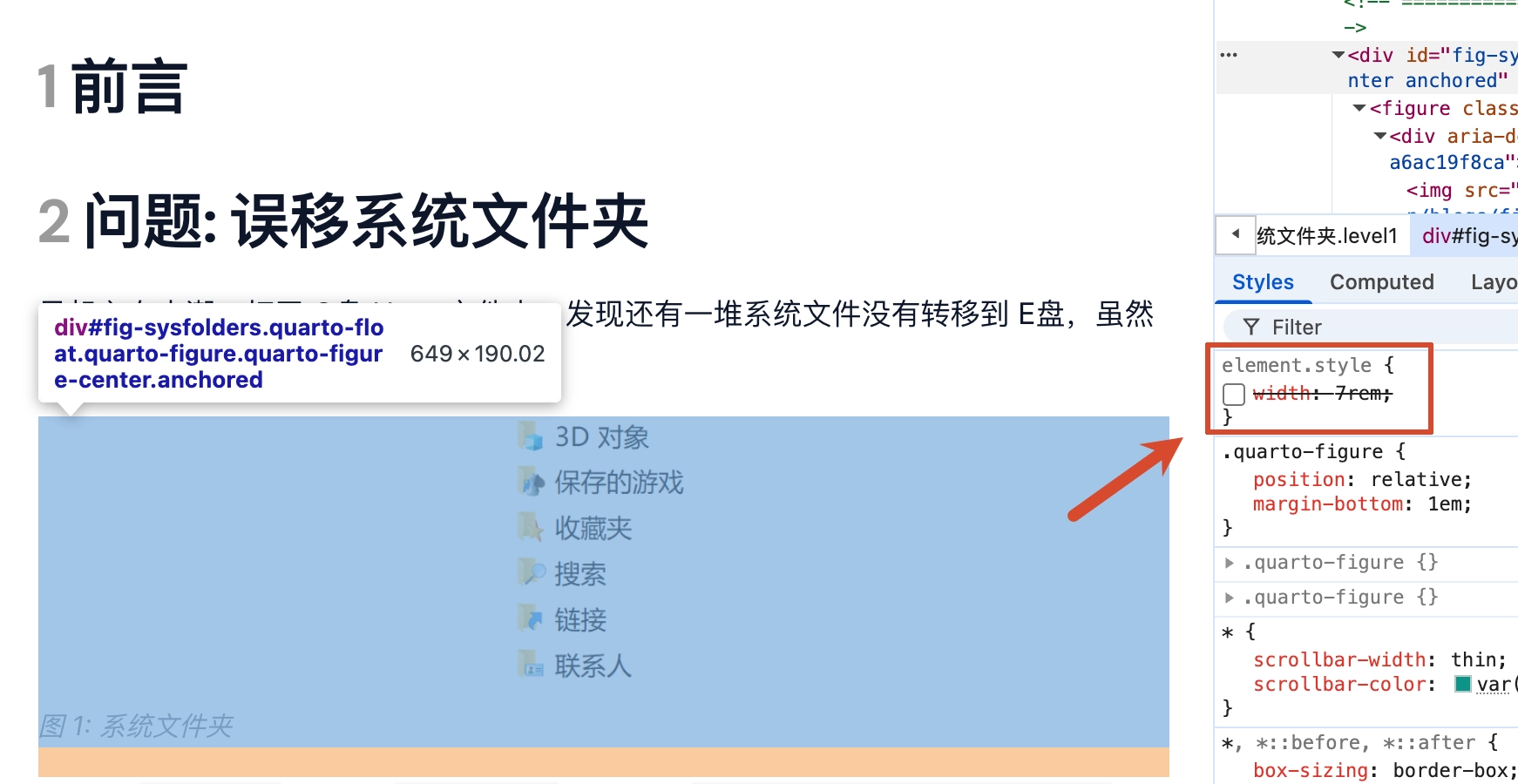
Removing the parent container’s width constraint restored image centering.
I also tried several other approaches, such as:
# Attempt 1
:::{#fig-title width="100%"}
{style="width:7rem;"}
Caption
:::
# Attempt 2
:::{#fig-title style="width:100% !important;"}
{style="width:7rem;"}
:::
# Attempt 3
:::{#fig-title style="text-align:center; width:100% !important;"}
{style="width:7rem;"}
Caption
:::
# ...None of them achieved the desired result.
In the end, I decided to target the parent container directly via CSS, adding this rule to style.css:
.quarto-float.quarto-figure.quarto-figure-center.anchored {
    width: 100% !important;
}
Combined with the image syntax:
{#fig-title style="width:7rem;"}This successfully centered the image while keeping the hover preview intact:
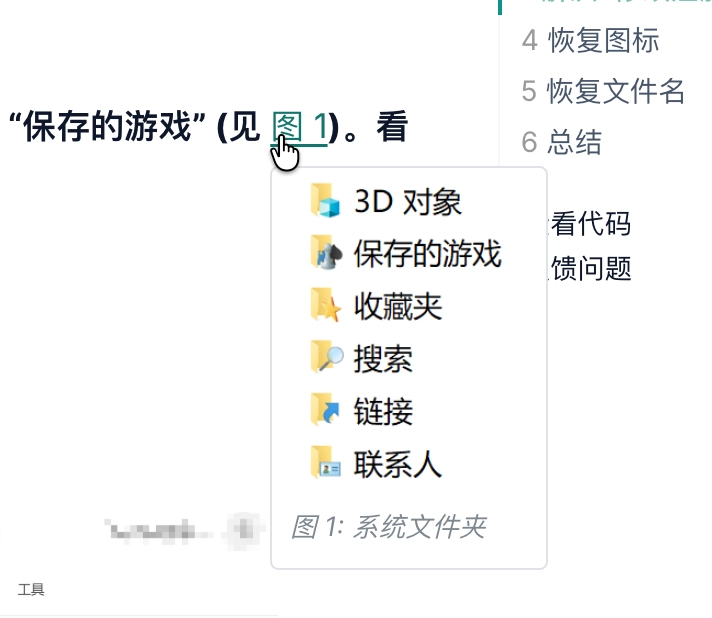
3 Centering Both Image and Caption
After fixing image centering, the caption still defaulted to left-aligned.
While Quarto’s fig-cap-location attribute lets you place the caption at top, bottom, or margin, it does not control alignment.
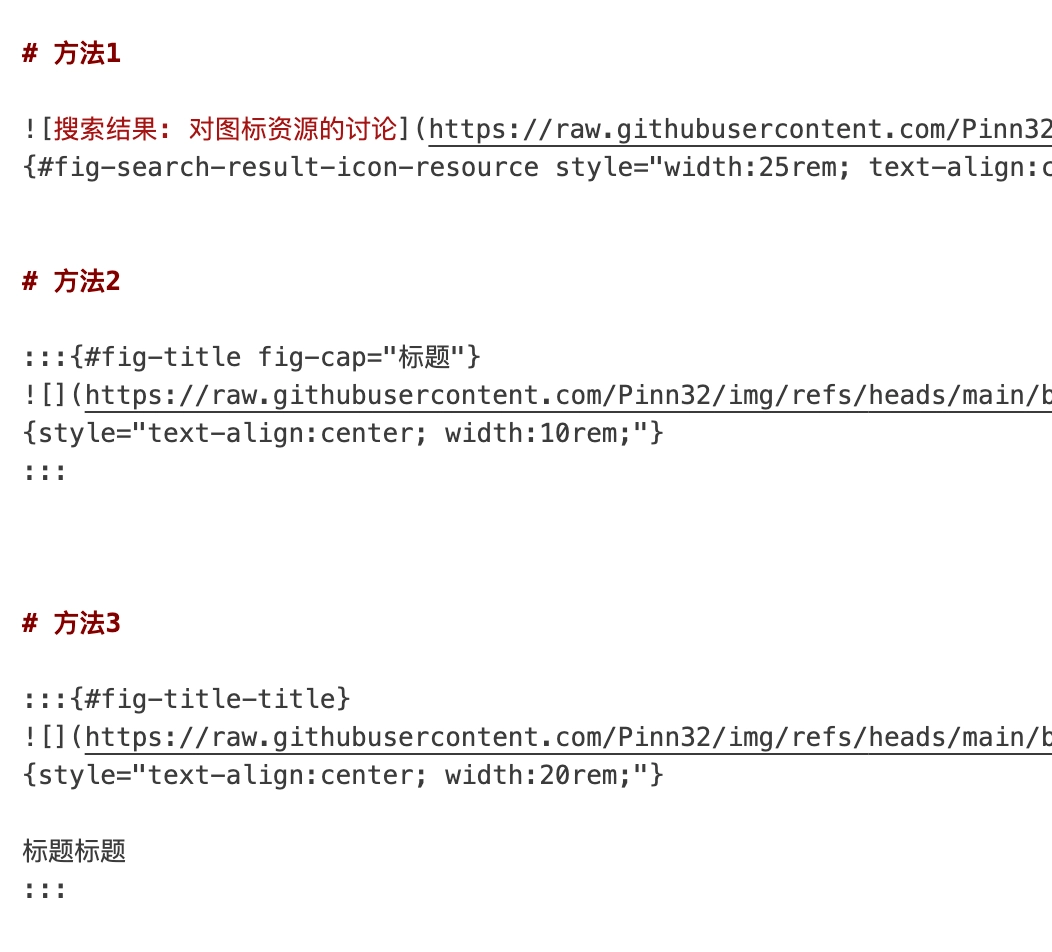
After testing, the simplest solution is to set alignment directly in the image’s inline style:
# Method 1
{#fig-title style="text-align:center; width:7rem;"}This requires no extra container and no caption separation.
Other viable approaches:
# Method 2
:::{#fig-title fig-cap="write caption here"}
{style="text-align:center; width:7rem;"}
:::
# Method 3
:::{#fig-title}
{style="text-align:center; width:7rem;"}
<note: a blank line is required here>
Caption
:::Method 1 has the cleanest syntax and the best code highlighting; Methods 2 and 3 are more verbose and introduce additional container nesting.
To center all captions on a page, add internal CSS instead:
<style>
    figcaption {
        text-align: center;
    }
</style>
The image syntax stays the same:
{#fig-title style="width:7rem;"}